You know outreach should happen every day, but nobody has the time, and the generic messages you do send get no reply. The fix is a sequence: a planned run of steps across channels, with waits between them and a clear rule for what happens when someone answers. This guide shows how to build a multichannel sales outreach sequence in five stages, using the ZOROSDR sequence builder as the worked example.
By the end you will know how to choose channels, set waits, add follow-ups and handle replies without losing control of what goes out.
What is a multichannel sales outreach sequence?
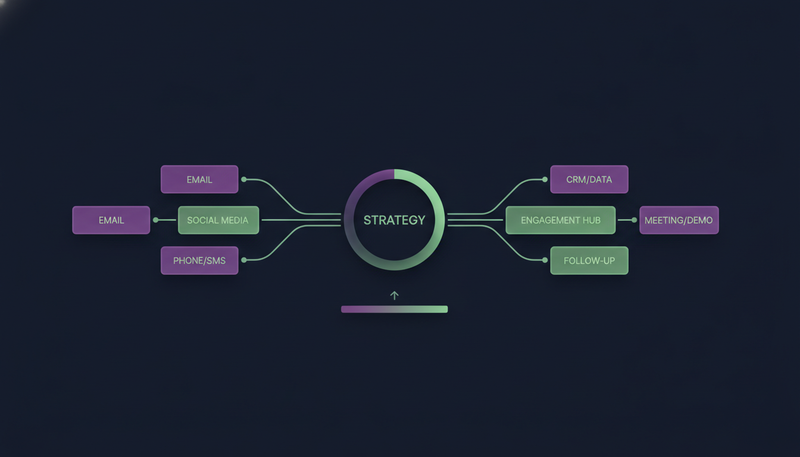
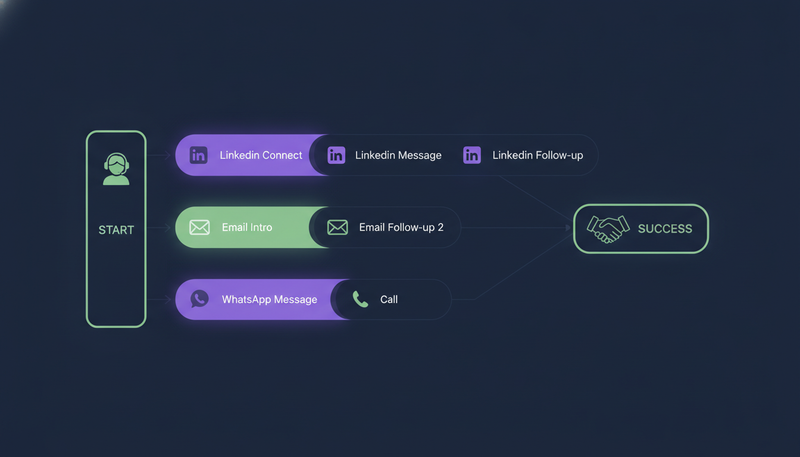
A multichannel sales outreach sequence is a series of messages to one lead across more than one channel, for example a LinkedIn invite, then an email, then a WhatsApp message. Each step has a wait before it and a goal behind it.
The sequence matters more than the channels. Without one, outreach turns into one-off messages nobody tracks. With one, every lead gets the same sensible rhythm and you can see what works.
In ZOROSDR a sequence can hold up to 12 steps. The step types are email, LinkedIn invite, LinkedIn message, WhatsApp, SMS, AI call, and a step that finds an email or phone number.
How to build a multichannel sales outreach sequence in five stages
The sequence builder works in five stages. You can save as you go, and a list at the end tells you what is still missing.
- 1Basicssay what counts as success and set the brand voice the AI writes in.
- 2Audiencechoose who is in the sequence, and write the rules for who to contact and when to hand over.
- 3Messagesadd the steps, the waits between them and a brief for each one.
- 4Send frompick the accounts the messages go out from.
- 5Review and turn onread what is still missing, then press Turn on sequence.
The rest of this guide follows that order. Here's the catch: most of the quality is set in the first two stages, before you write a single message.
Step 1: Set the goal and the brand voice
Start with one goal. In Basics you say what counts as success: a meeting, a reply or an accepted LinkedIn connection. The AI aims for that goal, in your words, so a vague goal gives vague messages.
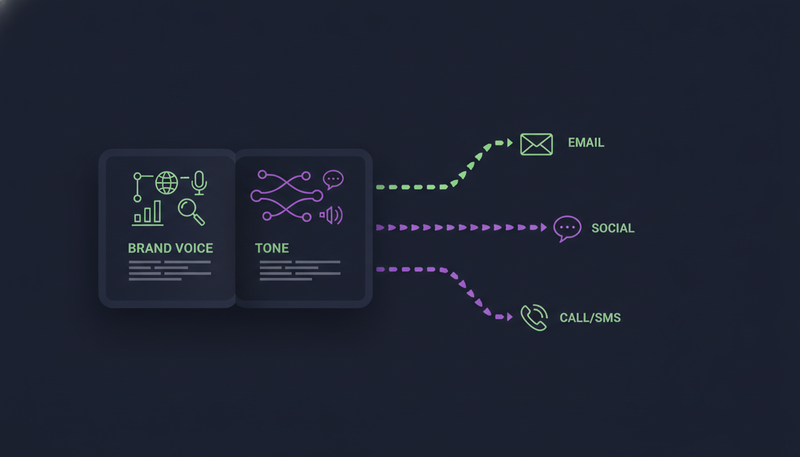
Then set the brand voice, which is who the AI writes as. It must be reviewed before the sequence can go live. The AI writes from your website and the knowledge you give it, and it states no fact you didn't give it. If it doesn't know something, it says it will confirm.
That answers a common fear, an AI sending something wrong in your name. Put the facts in once. If a draft keeps missing, add the missing fact to the brand voice's knowledge rather than rewriting the same draft again and again.
How do you set the audience and rules?
In the Audience stage, pick a list to add its leads now. Tick Add new matching leads automatically if you want new ones added while the sequence is live.
Use Persona per segment to speak differently to different groups, for example one voice for clinics and another for real estate. Then write Rules the way you would brief a new salesperson, one per line: "Only contact people who...", "Never contact..." and "Hand the conversation to a person when the lead...".
Hand-offs move a lead to another sequence when it reaches a stage you choose. A booked meeting can move them to customer success, for example.
How do you choose the channels for a sequence?
Choose channels by how your buyers already talk to vendors, not by what the software offers. A head of sales may live on LinkedIn, while a clinic owner may answer WhatsApp first. Two channels is a fair start. Add a third when you can say what it adds.
This is how the two most common channels compare in ZOROSDR:
| Sends from | Your own Gmail, Outlook or any mailbox | Your own LinkedIn account |
| Daily limit | Up to 100 emails a day per mailbox | 50 LinkedIn actions a day per account |
| Step types | Invite and message |
WhatsApp, SMS and AI calls suit later steps or warmer leads. WhatsApp Business runs on templates and replies, with consent, so it needs more care than email. Browse all the supported channels before you decide.
How long should you wait between steps?
Each step has a wait, set in days after the previous step. Give a lead a few days to see and answer a message before the next one arrives. A new message every day reads as pressure, not persistence.
Messages go out in each lead's working hours. Every plan also sends up to 100 emails a day per mailbox and 50 LinkedIn actions a day per account, which keeps your accounts safe.
Give every step a brief for the AI, such as "one pain from their world, one line on how we help, a soft question". A short, specific brief gives you a short, specific draft.
How many follow-ups should you add?
A first message seldom does all the work, so follow-ups matter. Press Add follow-ups and the builder adds up to 5 email or LinkedIn follow-ups at a tight, standard or relaxed pace. Each comes with a brief you can edit.
Each follow-up should add something new: a different pain, a short question, a fact from your knowledge. Repeating the first message in new words is the quickest way to be ignored.
If you'd rather not start from a blank page, use Suggest steps with AI. Pick the channels, the number of steps and the pace, and add anything to focus on. The AI writes each step's brief and an example in your brand voice, only from your own facts. Read it, press Use these steps, adjust anything and Save. Nothing changes until you do.
How do you branch on what a lead does?
Branches let a sequence react. After a wait, a branch step asks a question, such as whether a LinkedIn invite was accepted, and sends the lead down one path or the other.
Here is the builder's own example:
- LinkedIn invite
- Branch after 3 days: Accepted? Yes goes to the next step, no goes to step 5
- LinkedIn message
- End this path
The End this path step in position 4 stops accepted leads from carrying on into the email. Without it, they would receive both paths.
What happens when a lead replies?
The sequence stops for a lead as soon as they reply, opt out, book a meeting or move to a closing stage. That is deliberate: a person should answer a human reply, not the next scheduled step.
When a lead replies, their waiting outreach drafts are withdrawn and a reply draft appears in AI Admin. Every reply is read and sorted as interested, a question, an objection, not now or stop. A suggested answer waits for you. Replies always wait for a person, even on auto sequences.
Opt-outs come first. System-level rules catch "stop" and "unsubscribe" before the AI even reads the reply, so nobody gets an accidental follow-up.
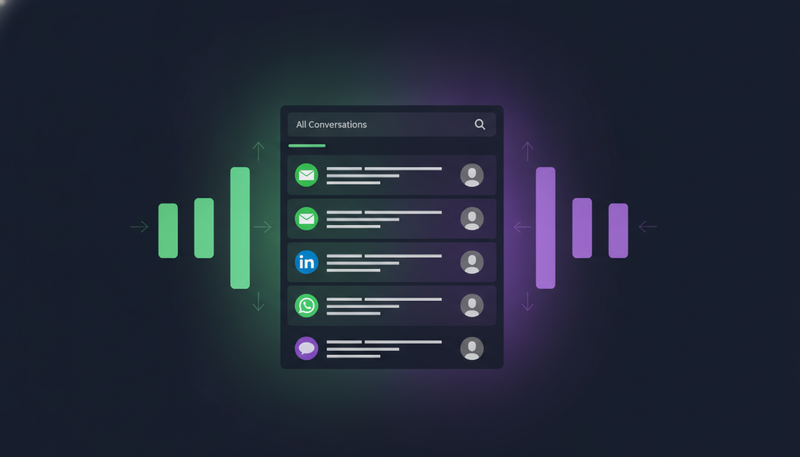
If you want a lead to carry on after a reply, press Continue sequence on the lead. It resumes and takes the replied path at the branch. When you answer, read the lead's message above the draft first. Approving a reply unread is the most common mistake.
How do you keep a person in charge?
Every first message lands in AI Admin under To approve as a draft. You approve, edit or skip it, and nothing is sent until you do. Skipping moves the lead on to the next step after its wait. You can read more about the guardrails.
Messages are sent from your own accounts, not a shared server. Checks for SPF, DKIM and DMARC and automated bounce handling are built in, so your outreach inherits the authority of your own domain.
Run through this list before you press Turn on sequence:
Before you turn it on
- The goal is written in your words
- The brand voice has been reviewed
- A list is chosen and the rules say who never to contact
- Every step has a wait and a brief
- Follow-ups are added at a pace you are happy with
- Each branch ends with an End this path step
- The sending accounts are selected
- The list of missing items at the end is empty
Anything the review list flags is worth fixing now, not after the first lead has been contacted.
How can you test a sequence before you spend anything?
Start with one small list and read every draft before you approve it. Every new workspace comes with sandbox credits for exactly this.
The trial lasts 14 days, covers all the tools, needs no card and can be cancelled at any time. After it, Starter is $99 a month, Growth is $249 and Agency is $599. See the pricing for what each plan includes.
Frequently asked questions
How many channels should a multichannel outreach sequence use?
Two is a fair start. A sequence can hold up to 12 steps across email, LinkedIn, WhatsApp, SMS and AI calls, but add a channel only when you can say what it adds.
How many follow-ups should I add?
ZOROSDR adds up to 5 email or LinkedIn follow-ups at a tight, standard or relaxed pace. Each has a brief you can edit, and each should add something new.
What happens when a lead replies to a sequence?
The sequence stops for that lead, their waiting drafts are withdrawn and a suggested reply appears in AI Admin. A person reads, edits and sends it.
Can the AI send messages without my approval?
No. Every first message arrives as a draft that you approve, edit or skip. Replies always wait for a person, even on auto sequences.
Summary
A good sequence is a few steps across two or three channels, with waits in days, a capped number of follow-ups and one firm rule: a reply stops everything so a person can answer. Build it in five stages: Basics, Audience, Messages, Send from, then Review and turn on.
The next step is to start the free trial and build one small sequence on your own list.