Your new inbox is connected, the list is ready and you want to hit send. Then the doubt starts: will the account get flagged before anyone reads the first email? The short answer on how to warm up email account for cold outreach is to start low, ramp up over about three weeks, respect daily limits and check account health before you raise volume.
This guide gives you a three-week ramp, the daily limits for email and LinkedIn, and a health check routine you can run inside ZOROSDR.
Why does a new mailbox or LinkedIn account need warming up?
A new account has no sending history. When it suddenly sends a lot, the pattern looks like abuse, and platforms react to that.
ZOROSDR's own guide lists this as a common mistake: setting the full daily limit on a brand-new inbox with warm-up off. New accounts that send a lot from day one get flagged.
Your messages leave from your own connected accounts, such as Gmail, Outlook or LinkedIn. The reputation at risk is yours, not a shared server's.
Warming up means raising volume in steps so the account builds a normal pattern. It is a habit rather than a one-off task.
How do you warm up an email account for cold outreach?
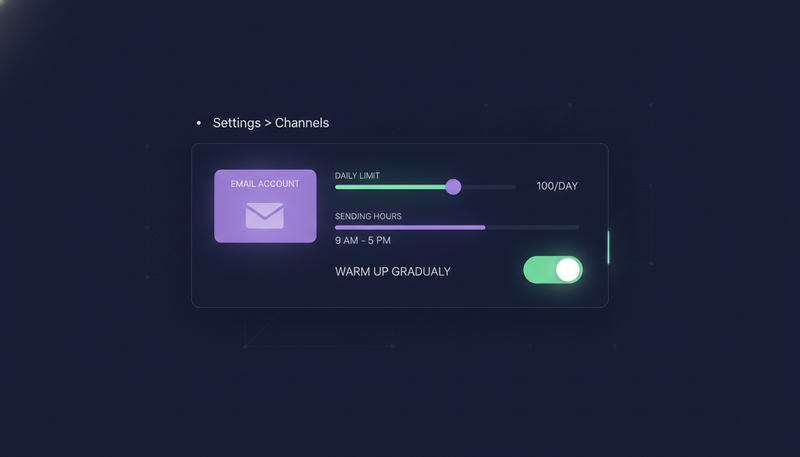
The setup lives in one place: Settings › Channels. Work through these steps in order.
- 1Connect the inboxPress “Connect an inbox” and add Gmail, Outlook or any other mailbox you send from.
- 2Check the sending domainOpen “Sending domain” and fix any SPF, DKIM or DMARC part it flags before the first send.
- 3Set the daily limit and hoursChoose the days and hours the mailbox may send, and a daily limit that suits a new account.
- 4Leave “Warm up gradually” onIt ramps a new email account up over 3 weeks, so you don't schedule it by hand.
- 5Add a signatureWrite one, or leave it empty to use the signature from your brand voice.
- 6SavePress “Save changes”, because nothing applies until you do.
Two details matter here. The 100 emails a day per mailbox is a ceiling, not a target. And the warm-up setting only helps while it stays on.
The next step is where most teams slip. They connect the inbox, then switch warm-up off to move faster.
What are safe daily limits for email and LinkedIn?
Every plan sends up to 100 emails a day per mailbox and 50 LinkedIn actions a day per account. Those caps keep accounts safe. Treat them as the top edge, never the starting point.
On each account you set a “Daily limit” and the sending or calling hours and days. Sends also follow each lead's local working hours, so messages don't land at odd times.
Need more volume? Spread it across more connected accounts instead of pushing one past its cap. In a sequence you tick every inbox and LinkedIn account it may send from under “Send from”, and a lead's follow-ups always come from the account already talking to them.
How long does the 3-week ramp take, and what does it look like?
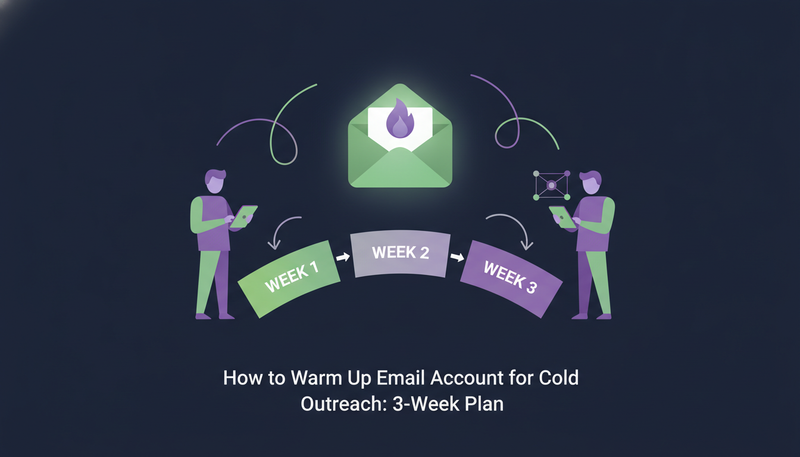
With “Warm up gradually” on, a new email or LinkedIn account ramps up over three weeks. Volume starts low and climbs toward your daily limit. ZOROSDR sets the steps, so you don't need a spreadsheet.
Use those weeks for your best-fit leads, not your whole list. Here's the catch: a ramp protects the account only if the early messages are good ones, because failed sends and low LinkedIn acceptance both feed the Health label.
| Warm-up on | Warm-up off | |
|---|---|---|
| Daily volume early on | Climbs gradually over 3 weeks | Jumps to the full daily limit |
| What platforms see | A pattern that builds over time | A sudden burst from a new sender |
| Effort for you | Leave one setting on | None, but you carry the risk |
| Fit for a new account | Yes | Not recommended |
Every new workspace also starts with 100 AI-written messages, 25 prospect-finding credits and 10 WhatsApp messages. Use them to test lead quality while the ramp runs.
How do you check SPF, DKIM and DMARC before sending?
Warm-up helps only if the domain is set up properly. In Settings › Channels, “Sending domain” checks your email domain's setup (SPF, DKIM and DMARC) and says how to fix each part.
Run it before the first send, and again after any change to your email provider or domain settings. Address checks and bounce handling are built in too, so bad addresses are caught along the way.
Before the first email
- Inbox connected under Settings › Channels
- “Sending domain” checked and every SPF, DKIM and DMARC fix done
- Daily limit set well below the 100 cap for a new mailbox
- “Warm up gradually” switched on
- Sending days and hours set
- Signature added, or left empty on purpose
- Brand voice read and ticked “Reviewed”, since sequences can't go live without it
What do Healthy, Worth watching and At risk mean?
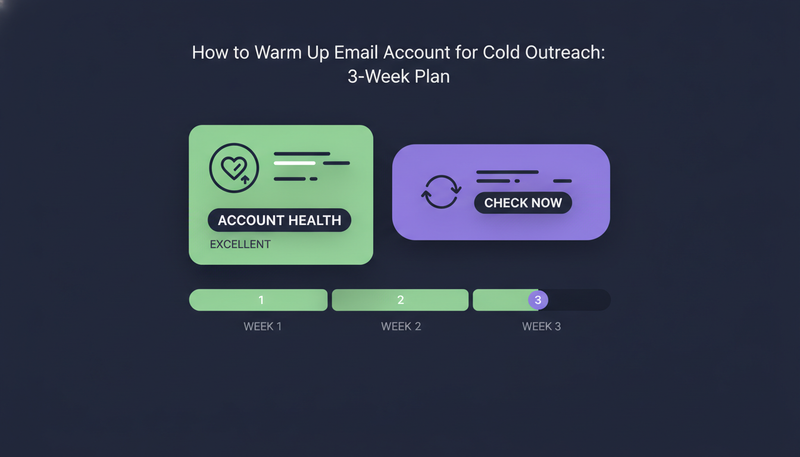
Each connected account shows a Health label: Healthy, Worth watching or At risk. It is worked out from failed sends, LinkedIn invite acceptance and limits. Press “Check now” to check again after a change.
Look at it often during the first three weeks, not only when something breaks.
A daily glance takes seconds. A flagged account takes much longer to sort out.
What should you do when an account is Worth watching or At risk?
Slow down first. Lower the daily limit on that account and give it time before you raise it again. Then press “Check now” to see whether the label moves.
Next, look for the cause. Failed sends point to address or domain problems, so run “Sending domain” again. Low LinkedIn invite acceptance points to who you are inviting and what the invite says.
If the label stays At risk and you can't see why, write to support@zorosdr.com and the team will follow up.
How do you warm up a LinkedIn account for outreach?
LinkedIn has a lower cap than email: 50 actions a day per account. A new LinkedIn account should use “Warm up gradually” too, which ramps over the same three weeks.
Invites are limited to 280 characters, and the counter turns red when you go over. A LinkedIn message after an invite waits until the lead accepts, for up to 21 days.
Acceptance feeds the Health label, so inviting poorly matched people hurts the account as well as your results. Keep early invites to people who clearly fit.
Write the invite the way you'd write to one person you'd like to meet. Short and specific tends to read as human.
Do WhatsApp and SMS need a warm-up?
The ramp setting covers email and LinkedIn accounts. WhatsApp and SMS follow a different rule: consent. They go only to leads who agreed.
A WhatsApp Business number needs an approved template for the first message, and a template goes out word for word as WhatsApp approved it. For opt-outs and consent in the UAE, read the cold email compliance checklist.
Why do your own accounts and human approval help?
Messages are sent directly through your own connected accounts, not a shared server. Your outreach inherits your own domain authority, and the warm-up work stays with you. The trade-offs are covered in cold email from your own mailbox vs a shared sending server.
Approval gives you a second brake during the ramp. Every first message lands in AI Admin as a draft, and nothing goes out until a person approves, edits or skips it. Skipping moves the lead on to the next step after its wait.
Before you launch, run through the outreach sequence setup checklist. Want the full list of ways accounts get flagged? See cold outreach mistakes that get accounts flagged.
Frequently asked questions
How long does it take to warm up a new email account?
With “Warm up gradually” on in ZOROSDR, a new email or LinkedIn account ramps up over 3 weeks.
How many cold emails can I send a day from one mailbox?
Up to 100 emails a day per mailbox on every plan. A new mailbox should start well below that and climb.
Should I turn warm-up off to send faster?
No. New accounts that send a lot from day one get flagged. Leave warm-up on for new email and LinkedIn accounts.
How do I know if my account is healthy?
Open Settings › Channels. Each account shows Healthy, Worth watching or At risk, and “Check now” checks again.
Does LinkedIn need a warm-up too?
Yes. A LinkedIn account is capped at 50 actions a day, and the same 3-week ramp applies to new accounts.
Summary
Warm up a new mailbox or LinkedIn account by connecting it, checking SPF, DKIM and DMARC, setting a sensible daily limit and leaving “Warm up gradually” on for three weeks. Watch the Health label and change one thing at a time when it slips.
When you're ready, start the 14-day free trial and set up your first account.