You set up a new inbox, load a list, send a few hundred messages, and a week later your emails land in spam or LinkedIn restricts the account. If you searched for "cold outreach mistakes email LinkedIn account flagged", the short answer is that the causes are rarely dramatic. They are ordinary setup choices: too much volume too early, the wrong domain, a messy list and messages to people who never agreed.
This article covers seven of them and how to fix each. By the end you will have a checklist to run before you send anything.
Why do these cold outreach mistakes get an email or LinkedIn account flagged?
An account that suddenly sends a lot, sends to addresses that bounce, or sends invites nobody accepts looks different from a normal one. That is what gets noticed.
ZOROSDR tracks similar signals. The "Health" label on each connected account reads Healthy, Worth watching or At risk, based on failed sends, LinkedIn invite acceptance and limits. Each mistake below pushes one of those signals the wrong way.
These caps keep accounts safe. They do not guarantee an account will never be flagged, so the habits below still matter.
Mistake 1: Sending at full volume from a brand-new account
This is the most common one. A fresh inbox or LinkedIn account has no sending history, then goes from zero to a full daily quota on day one. New accounts that send a lot from day one get flagged.
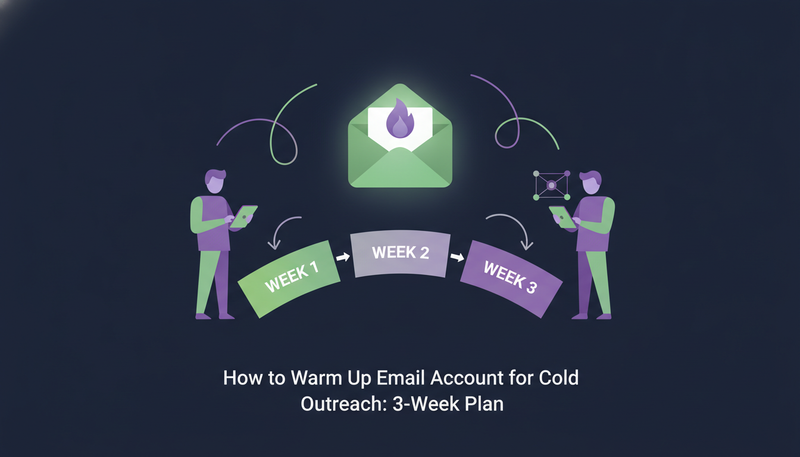
The fix is slow and a little boring. Leave "Warm up gradually" on for new email and LinkedIn accounts. It ramps up over three weeks, so volume rises in steps instead of one jump.
Here's the catch: the switch is easy to turn off when you are in a hurry to launch. A full daily limit on a new inbox with warm-up off is exactly the combination that causes trouble.
- 1Open channel settingsgo to Settings and find the connected email or LinkedIn account.
- 2Set a daily limitpick a number you are comfortable with. A mailbox sends at most 100 a day and a LinkedIn account 50.
- 3Set sending hours and dayskeep to normal working times.
- 4Keep warm-up onleave "Warm up gradually" ticked for any new account.
- 5Save and recheckpress "Save changes", then look at the Health label again after a few days.
Mistake 2: Sending outreach from your main company domain
If cold emails go out from the domain your team uses every day, any problem with outreach lands on the mail you depend on. Customer replies, invoices and internal email share that reputation.
Use a separate domain for outreach so your everyday email stays safe. ZOROSDR sends through your own connected accounts (Gmail, Outlook or any mailbox), not a shared server, so your outreach inherits the authority of the domain you connect. That is good news when the domain is clean, and a reason for care when it is your only one.
Mistake 3: Skipping SPF, DKIM and DMARC
These three records help receiving servers confirm that a message really comes from your domain. When one is missing or misaligned, your mail is more likely to be treated with suspicion.
Many teams connect a mailbox, see it send, and never check the domain. The "Sending domain" check in ZOROSDR's channel settings looks at your SPF, DKIM and DMARC setup and says how to fix each part. Address checks and bounce handling are built in too.
The next step is where most teams slip: they fix the records once and never look again. After any change to your domain or mail provider, run the check again and press "Check now" on the account's Health.
Mistake 4: Emailing a messy list and ignoring bounces
Bad addresses bounce, and bounces hurt the account that sent them. A list stitched together from old spreadsheets, with duplicates and missing details, is a quick route to that.
When you import a CSV or Google Sheet into ZOROSDR, rows with no email, phone or LinkedIn, or repeated in the file, are skipped, and "See skipped rows" shows why. People already in your workspace are counted, not changed, and people erased on request are left out.
One small trap: a file saved as Excel (.xlsx) will not import. Export it as CSV first.
Before you import a list
- The file is saved as CSV, not .xlsx
- Every row has an email, a phone or a LinkedIn link
- No person appears twice
- A consent column says yes only where the person agreed to WhatsApp or text messages
- You have read "See skipped rows" after the import
- The people on the list match who you actually want to reach
Mistake 5: Sending generic invites and copy-paste emails
Generic messages get ignored, and on LinkedIn that has a visible cost. Invite acceptance is one of the signals behind the Health label, so a pile of invites nobody accepts does not help the account.
In ZOROSDR each step in a sequence is written for that lead and that channel, in your voice, from your website and knowledge. It states no fact you did not give it, so if a detail matters, add it to the brand voice's knowledge. Our guide to building a multichannel sales outreach sequence shows how the steps fit together.
Keep invites short. LinkedIn invites are limited to 280 characters, and the counter turns red when one is too long.
| Generic outreach | Written for the person | |
|---|---|---|
| What the message says | The same pitch to every lead | One pain from their world, one line on how you help, a soft question |
| Where the facts come from | Guessed or copied | Your brand voice and knowledge only |
| LinkedIn invite | Long and salesy | Short, within 280 characters |
| Effect on Health | Unaccepted invites drag it down | Invites people have a reason to accept |
The ZOROSDR product page shows how the AI writer and sequences work together.
Mistake 6: Contacting people who never agreed, and missing opt-outs
WhatsApp and SMS are not email. Texting or WhatsApp-ing people who didn't agree to it is one of the common mistakes in the app's own guidance. Its twin at import is marking everyone as agreeing to WhatsApp or SMS when they didn't.
Use a consent column only where it is true. If you are unsure whether a group agreed, keep them to email or LinkedIn.
Opt-outs matter just as much. System-level rules catch "stop" or "unsubscribe" requests before the AI even reads the reply, so nobody gets an accidental follow-up after asking to be left alone. The guardrails page explains how this works.
Each channel has its own rules, so look at how email, LinkedIn, WhatsApp, calls and SMS work before you combine them in one sequence.
Mistake 7: Not watching account health, and sending unread
The last mistake is passive. Health is the early warning, and it only helps if someone looks. Check each account's label and press "Check now" after you change something.
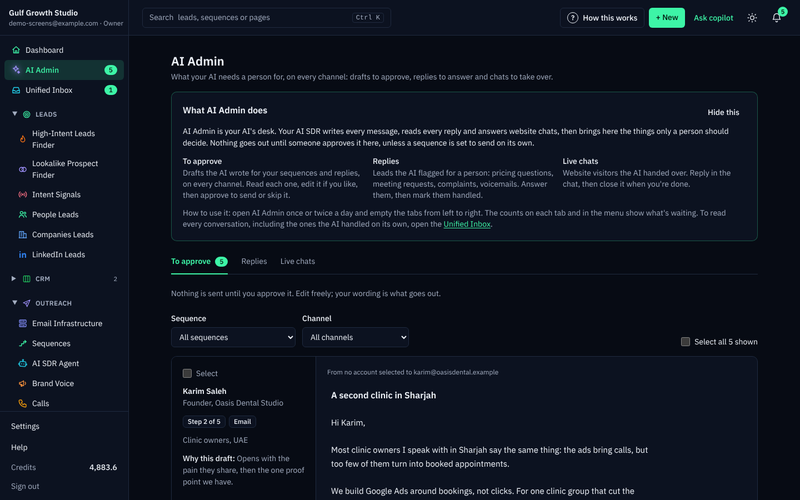
The second half is what actually goes out. In ZOROSDR every initial message lands in the inbox as a draft, and nothing is sent until a person approves, edits or skips it. Replies always wait for a person too, even on automatic sequences. A quick read catches the wrong name, the wrong claim and an invite that runs too long.
Two habits go wrong here. One is approving a reply without reading the lead's message above it. The other is rewriting the same draft again and again. If a draft keeps missing, add the missing fact to the brand voice's knowledge.
How can you check all seven before you send?
Run through this list whenever you connect a new account or start a new sequence.
Pre-send check
- New account: warm-up is on and the daily limit is modest
- Outreach runs from a separate domain, not your main one
- Sending domain check shows SPF, DKIM and DMARC in order
- List imported as CSV and skipped rows reviewed
- Messages written for the person, invites within 280 characters
- WhatsApp and SMS only for people who agreed
- Health is Healthy, and drafts are read in AI Admin before approval
Frequently asked questions
How many cold emails can I send a day without being flagged?
No number is guaranteed safe. ZOROSDR caps a mailbox at 100 emails a day and a LinkedIn account at 50 actions a day on every plan. New accounts should ramp up with warm-up on, so start below the cap and watch the Health label.
How long should I warm up a new inbox?
ZOROSDR's "Warm up gradually" setting ramps up over three weeks for new email and LinkedIn accounts. Leave it on for any new account.
Do I need a separate domain for cold outreach?
We recommend it. Sending from your main company domain is a common mistake, and a separate outreach domain keeps your everyday email safe.
Can an AI send messages without anyone checking?
On ZOROSDR you can choose to send sequence messages automatically, but the recommended setting is that you approve every message. Replies to leads always wait for a person.
What do SPF, DKIM and DMARC do?
They help receiving servers confirm that mail really comes from your domain. The "Sending domain" check in ZOROSDR looks at each one and says how to fix any part that is off.
Summary
Most flagged accounts trace back to a short list: volume too soon, the main domain, weak authentication, a messy list, generic copy, missing consent and nobody watching. Fix those and your outreach stands on much safer ground.
The easiest way to see it working is to start the 14-day free trial. If you would rather talk it through first, book a demo with the team.