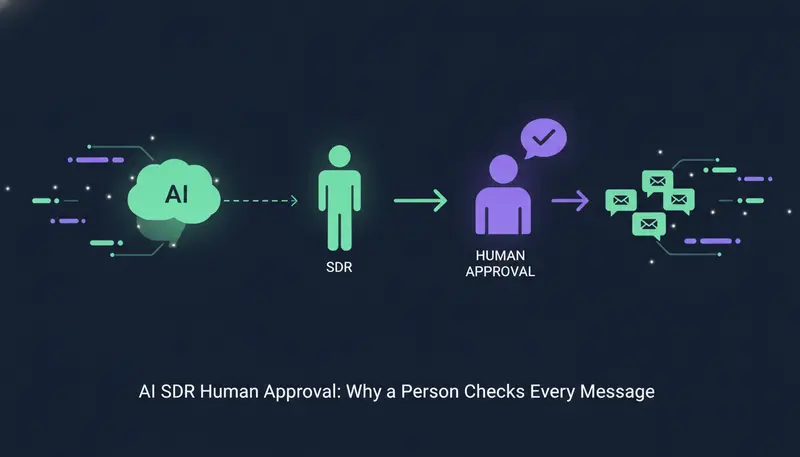
You want an AI to handle prospecting, but you are afraid it will send something wrong in your name. That worry is fair, and the short answer is AI SDR human approval: every message lands as a draft, and nothing goes out until a person approves, edits or skips it.
This article explains why we built ZOROSDR that way, what the person actually does, and where the limits are. By the end you can decide whether this setup fits your team.
Why does AI SDR human approval matter?
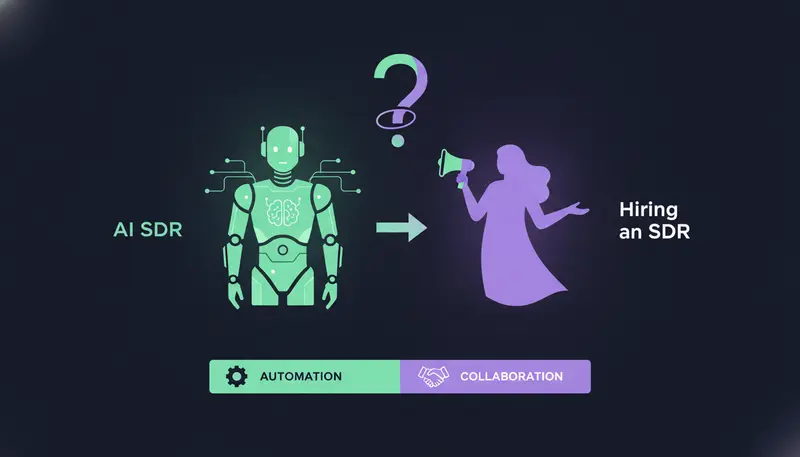
An AI SDR does the work of a junior sales development rep. It finds people, writes to them, follows up and sorts their replies. The difference is speed. A person writes a handful of messages a day, and software can draft far more.
Here's the catch: a mistake made at speed is still a mistake. It goes out under your name, from your own mailbox or LinkedIn account, and nobody can pull a message back from a stranger's inbox.
So we put a person at the one point where a check is cheap, which is before the send. The AI does the finding, drafting and sorting. You decide what leaves your account.
This is not distrust of software. It is a view on who should be accountable. When a message carries your company's name, someone at your company should have agreed to it.
If you want the wider picture first, read what an AI SDR is, how it works, and what it costs.
What does a person actually approve in ZOROSDR?
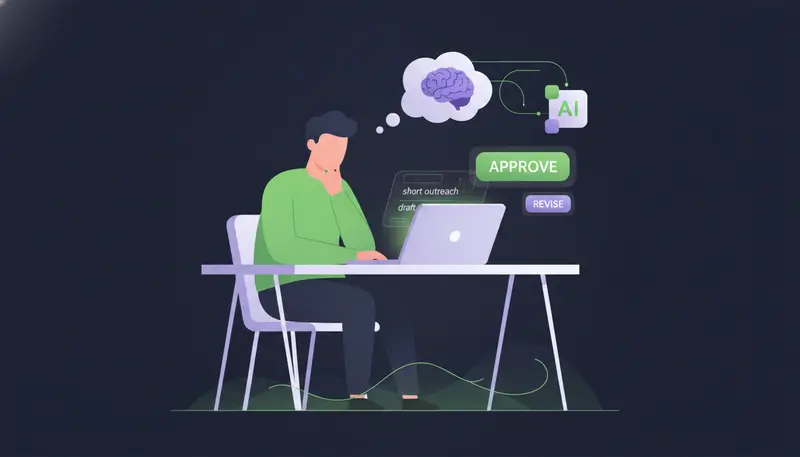
Every initial message your AI drafts waits in AI Admin. You can approve it, edit it, ask for a rewrite or skip it. Whatever you edit is what goes out.
Approval is the default. You can also choose to let a sequence send its messages on its own. Here is how the two settings compare.
| Approve every message | Send automatically | |
|---|---|---|
| Who sees the message first | You, as a draft | Nobody before the lead |
| Your edits | What goes out is your edited text | No chance to edit before it sends |
| Replies to leads | Always wait for a person | Always wait for a person |
| Where you choose it | “I approve every message (recommended)” | “Send sequence messages automatically” |
Channel by channel
Different channels get different cards, and the rules fit each one.
LinkedIn invites are limited to 280 characters and SMS to 300. A counter turns red when your text is too long. A WhatsApp template can't be edited, because it goes word for word as WhatsApp approved it.
An AI call card is different again. It is a brief for your AI caller, not a message the lead reads. You approve the brief with “Approve and call”, and if you approve outside calling hours, the call waits until they open.
The principle is the same on every channel: a person says yes first.
How does approval stop the AI sending something wrong in your name?
Approval is one of several layers, and the other layers reduce how much you have to catch.
First, the AI writes only from your brand voice, your knowledge base and news. If it doesn't know a fact, it says it will confirm rather than inventing an answer. Second, sequences can't go live until you have read your brand voice line by line, ticked “Reviewed” and saved. Third, you read the draft.
There is also a check on wording. The AI avoids stock words that make a message read as machine-written. A draft that slips is written again, then marked “Check before sending”.
Each card also shows “Why this draft” beside the lead's details. You see the reasoning, not just the text.
For a longer look at the safeguards, see three safeguards against a wrong message in your name. The brand voice itself is read from your website and reviewed by you once, so the first draft starts from your own facts and tone.
What does approving a draft look like day to day?
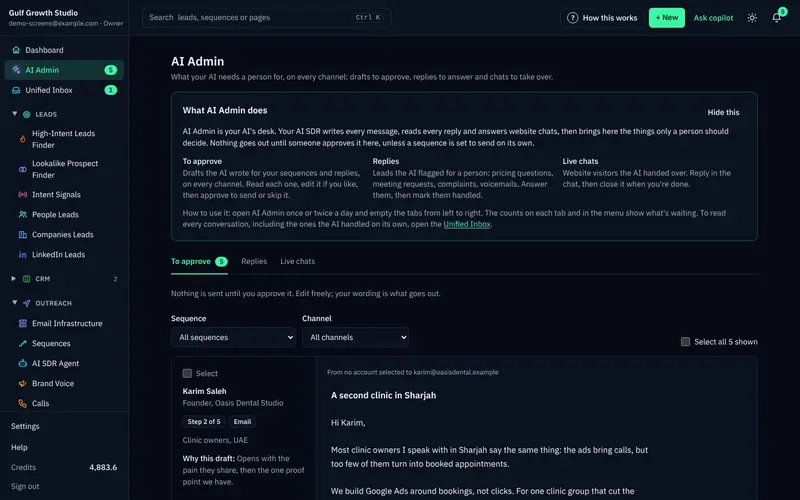
AI Admin is your AI's desk: everything it needs a person for. It has three tabs. “To approve” holds drafts, “Replies” holds leads flagged for a person, and “Live chats” holds website visitors handed over.
Open it once or twice a day and empty the tabs from left to right. The counts on the tabs and in the menu show what's waiting.
- 1Read the cardthe lead's details and “Why this draft” sit on the left. Replies also quote the lead's last message.
- 2Edit if you want tochange the subject or text right in the card, and your version is what goes out.
- 3Approvepress “Approve and send”, or “Approve and call” for an AI call.
- 4Ask for a rewrite if it's not rightsay what to change, for example “shorter, mention the case study”. A draft can be rewritten up to 5 times, and after that you edit it yourself.
- 5Skipuse “Skip this step” for outreach or “Discard” for a reply. Skipping an outreach draft moves the lead on to the next step after its wait.
Sometimes a card shows “Send failed”. It says why. Passing problems are retried automatically with the same text, and you can approve again to retry now.
To read every conversation, including the ones the AI handled on its own, use the Unified Inbox.
Does approving every message slow your team down?
It adds a step, and we won't pretend otherwise. But the step is reading, not writing. The AI has already found the lead, ranked the fit with a reason and drafted the message.
When you have many drafts, you don't have to click one at a time. Tick “Select” on cards, or “Select all”, and act on them together. There are limits on how many you can handle in one go.
Cards you can handle in one batch in AI Admin
Each rewrite counts as an AI-written message, so rewrite with a clear instruction rather than pressing it again and again. If a draft keeps missing, add the missing fact to your brand voice instead.
The pain behind “we don't have the time or people to prospect every day” is real. Approval doesn't remove the work. It removes the finding and drafting, and leaves you the part that should stay human.
How can you test the approval flow before you commit?
Read real drafts before you trust anything. The 14-day free trial gives you every tool with no card needed, and you can cancel at any time.
Every new workspace also starts with sandbox credits, so you can judge the drafts and the quality of the leads without risk.
Use that time to look at one thing: would you put your name under these drafts? If the answer is mostly yes, approval takes little effort. If it's no, you will know before anything has gone out.
Can you turn approval off?
For a sequence's own messages, yes. You can choose to send them automatically. For replies to leads, no. Replies always wait for a person.
We recommend approving every message, and the setting says so. A sensible path is to start with approval on, read the drafts for a while, and consider automatic sending only for a sequence whose output you have judged.
The reason replies stay with a person is simple. A reply is a live conversation, and that is where a wrong promise or a wrong tone costs the most.
What happens when a lead says stop?
Approval is not the only protection. Opt-outs are absolute. A clear “stop” or “unsubscribe” is caught before any AI reads the reply, and every other way of saying no is caught by reply triage.
Either way, every sequence stops for that person on every channel. A sequence also stops for a lead as soon as they reply, book a meeting or move to a closing stage.
Sending is handled with care too. Messages go through your own connected accounts, such as Gmail, Outlook and LinkedIn, so your outreach inherits your own domain authority. Sequences are timed to the lead's local working hours and respect safe daily platform limits.
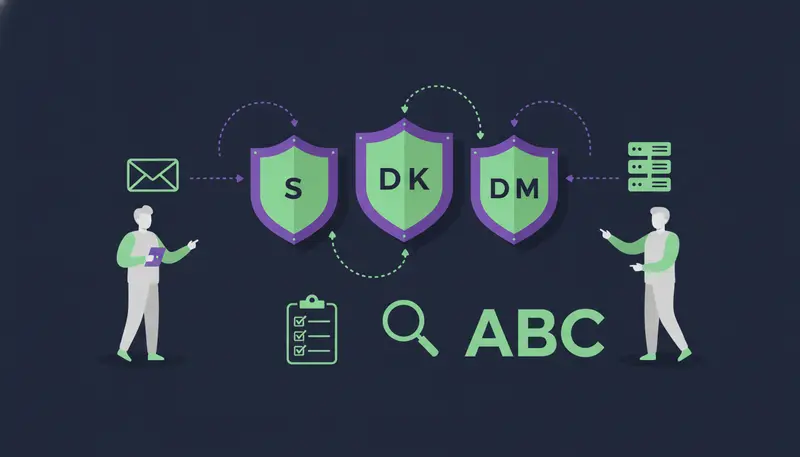
For email, there are built-in checks for SPF, DKIM and DMARC alignment, plus automated bounce handling. You can see the full list on the guardrails page.
What should you check on every draft before you approve it?
A short routine makes approval quick and consistent. Here is the one we would use.
Before you press approve
- The name, company and role are right for this lead.
- Every fact in the message is one you gave the AI.
- It sounds like you wrote it.
- It makes one clear ask, not three.
- The length fits the channel, for example 280 characters for a LinkedIn invite.
- “Why this draft” makes sense for this lead.
- If it is marked “Check before sending”, you have read it twice.
Who should do the approving?
Pick someone who knows your offer and your buyers. In a small company that is often the founder or the head of sales. In a larger team it can be a sales manager who already knows how a good first message sounds.
The rule holds if you run outreach for clients as an agency: a person approves before anything is sent.
Frequently asked questions
Can ZOROSDR send messages without a person approving them?
By default, no. Every message waits for a person. You can choose to let a sequence send its own messages, but replies to leads always wait for a person.
Does the AI make up facts in a message?
It is built not to. It writes only from your brand voice, your knowledge base and news. If it doesn't know something, it says it will confirm instead of inventing an answer.
What happens to a lead who replies?
The sequence stops for that lead. The reply is read and sorted as interested, a question, an objection, not now or stop. A suggested answer waits in AI Admin for a person to approve.
What happens if a lead asks to stop?
A clear “stop” or “unsubscribe” is caught before any AI reads the reply. Every sequence stops for that person on every channel.
Summary
We make a person approve every AI message because the message carries your name, and a quick human read is the cheapest protection you can add. The AI finds, drafts and sorts. You decide what goes out, and replies always wait for you.
The easiest way to judge it is to read the drafts yourself. Start the 14-day free trial, or book a demo if you'd like to see AI Admin with someone from the team.