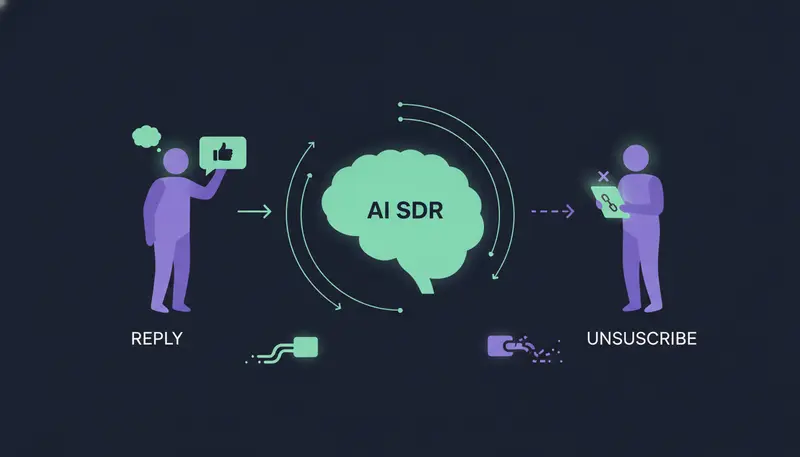
You switch on an AI SDR and the sending feels manageable. The reply is what keeps you up: what if someone writes back annoyed, asks something the AI cannot know, or just says stop? Here is what happens when a lead replies to an AI SDR or unsubscribes: the sequence stops for that person, the reply is read and sorted, and a suggested answer waits for a person to approve.
A clear stop is caught before any AI reads it. By the end of this guide you will know the path a reply takes, the five ways replies are sorted, how opt-outs work on every channel and what to check before you launch.
What happens when a lead replies to an AI SDR, step by step?
The short version: the automation stops talking and a person takes over. The AI does the reading and the drafting, so you start from something useful instead of a blank box.
- 1The sequence stopsas soon as a lead replies, opts out, books a meeting or moves to a closing stage, the sequence stops for them. Nobody gets step four of a plan after answering step two.
- 2Waiting drafts are withdrawnany outreach drafts waiting for that lead leave your approval list, so nothing stale goes out.
- 3The reply is read and sortedit is labelled interested, a question, an objection, not now or stop.
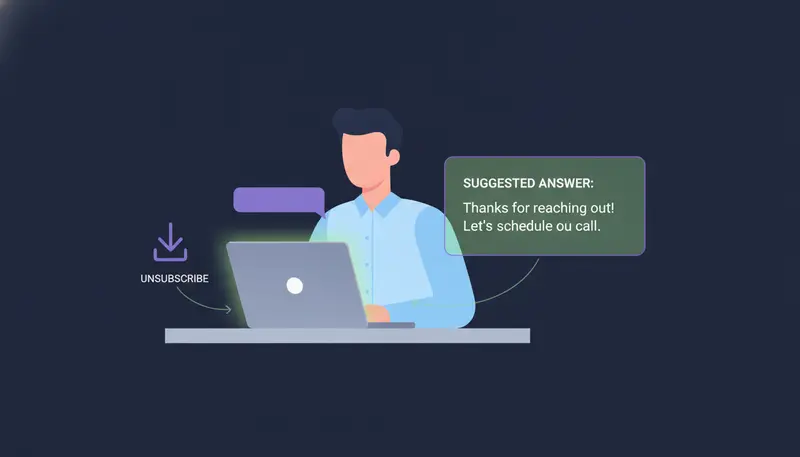
- 4A suggested answer appearsit waits in AI Admin, with the lead's last message quoted above it.
- 5A person decidesyou read, edit and approve, or discard. Nothing goes out until you say so.
Here's the catch: that holds even on sequences set to send their outreach automatically. Replies to leads always wait for a person.
How does an AI SDR sort replies?
Every reply is read and put into one of five groups: interested, a question, an objection, not now or stop. The label tells you what kind of job is waiting before you open it. The reply handling in the product sits alongside the lead finders, the writer and the sequences.
Interested
The lead wants to know more or to talk. A suggested answer waits for you, and when a meeting is booked the lead moves on.
A question
The lead asks about price, fit or how something works. The draft uses only the facts you gave the AI. If a fact is missing, it says it will confirm. More on that below.
An objection
Something like “we already have a tool for this”. The suggested answer is a starting point. You decide how much to say and how hard to push.
Not now
The timing is wrong, but the door is not shut. A person decides what happens next, and the wording of the draft is yours to change.
Stop
The lead wants no more messages. This one is handled differently, as the next section explains.
What happens when a lead unsubscribes or says stop?
Opt-outs are absolute. System-level rules catch a clear “stop” or “unsubscribe” before any AI reads the reply. The AI never gets the chance to write a friendly follow-up to someone who asked to be left alone.
Every other way of saying no is caught by the reply sorting. Either way, every sequence stops for that person, on every channel. If someone says stop on LinkedIn, the email planned for next week does not go out.
| A clear stop or unsubscribe | Any other way of saying no | |
|---|---|---|
| Who catches it | A system rule, before any AI reads the reply | The reply sorting |
| What stops | Every sequence for that person, on every channel | Every sequence for that person, on every channel |
| What it prevents | Accidental follow-ups | A polite no being treated as a maybe |
The guardrails page lists these rules next to approval and facts-only writing.
Who writes the answer, and who sends it?
The AI drafts and a person sends. Drafts and replies wait in AI Admin, which has three tabs: “To approve”, “Replies” and “Live chats”. Open it once or twice a day and empty the tabs from left to right.
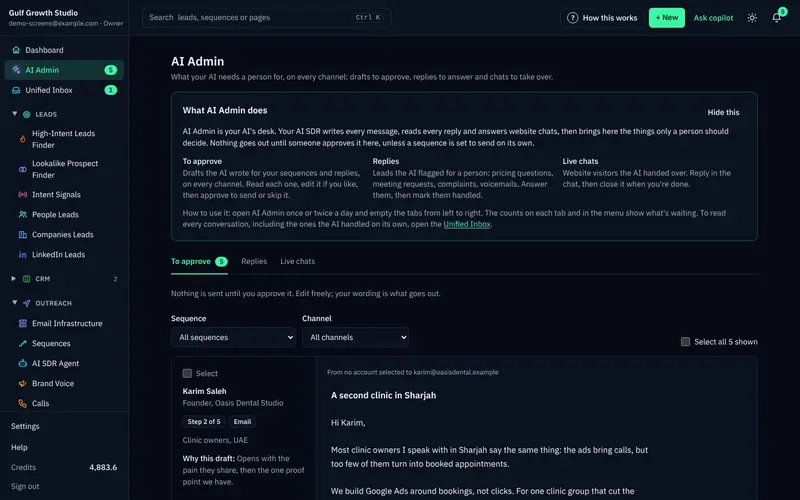
This is the same idea behind why a person checks every message. To handle one reply, work through the card:
- 1Read the cardthe lead's details and “Why this draft” sit on the left, and replies quote the lead's last message.
- 2Editchange the subject or text right in the card. Your edits are what goes out.
- 3Sendpress “Approve and send”, or “Approve and call” for an AI call.
- 4Not rightuse “Ask for a rewrite” and say what to change, for example “shorter, mention the case study”.
- 5Let it gochoose “Discard” for a reply, or “Skip this step” for an outreach draft.
Each rewrite counts as an AI-written message, and a draft can be rewritten up to 5 times. After that, edit it yourself.
What if the lead asks something the AI does not know?
It says it will confirm. The AI writes only from your brand voice, your knowledge base and news, and it does not state a fact you never gave it. A question about a detail you did not provide gets a draft that promises an answer, not a guess.
The fix is simple. If drafts keep missing, add the missing fact to the brand voice's knowledge instead of rewriting the same draft again and again.
One easy miss: forgetting to tick “Reviewed” on the brand voice. Sequences cannot go live with an unreviewed voice, and reading your website again sets the voice back to “Needs review”.
Do replies still wait for approval on automatic sequences?
Yes. By default every message waits for you. You can choose to let a sequence send its outreach on its own, but replies to leads always wait for a person.
| Outreach drafts | Reply drafts | |
|---|---|---|
| Waits for a person | By default, and you can choose automatic sending | Always |
| When the lead replies | Waiting drafts are withdrawn | A reply draft appears instead |
| If you do not want it | “Skip this step” moves the lead on after its wait | “Discard” |
When you set up a sequence, “Who approves messages” offers “I approve every message (recommended)” or automatic sending. Whichever you pick, the reply rule stays the same.
What if a lot of replies arrive at once?
Tick “Select” on cards, or use “Select all”, and handle them together. Each action has its own limit per batch.
Most cards you can handle in one batch in AI Admin
Batches are quick for outreach drafts that look alike. Replies deserve more care, because each one answers a different message.
Where do you follow the conversation after the reply?
Use the Unified Inbox. It lists every conversation with leads on email, LinkedIn, WhatsApp and more, including the ones the AI handled on its own.
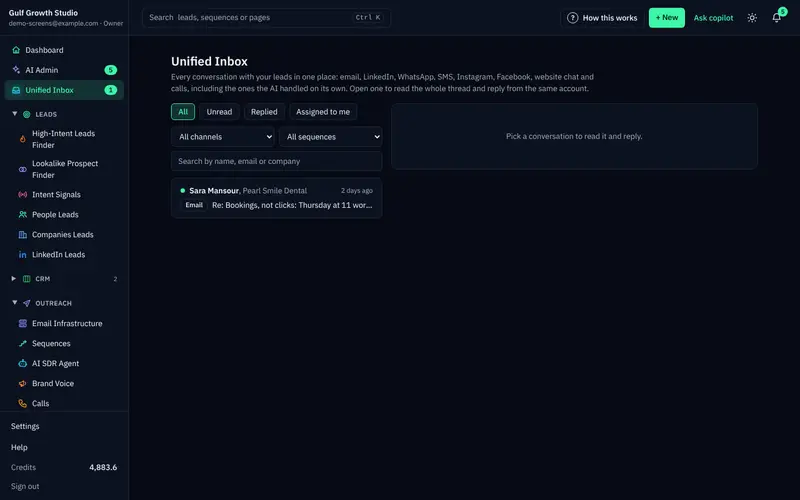
Each lead's page shows the activity, including which path the lead took through a branching sequence. Replies also feed a Hot score, together with clicks, website visits, LinkedIn activity, funding and hiring.
If a lead replied but the conversation is still open, say after a “not now”, press “Continue sequence” on the lead and it carries on, taking the replied path at a branch. A new reply stops it again. Opt-outs are different: they stop every sequence for that person.
How can you test the reply path before you launch?
Use the free trial. It runs 14 days with no card needed, and every new workspace starts with credits to test with.
Start with a small sequence. When the first reply arrives, walk the path yourself: see the label, read the suggested answer, edit it, approve it. Then run through this list.
Before you launch a sequence
- The brand voice is read, corrected and ticked “Reviewed”
- The facts you want quoted are in the knowledge, and “Proof” holds nothing you cannot back up
- “Who approves messages” is set the way you want
- A named person opens AI Admin once or twice a day
- The sending accounts are ticked for the sequence
- Your team knows that stop means stop, on every channel
- “Ready to go live?” shows nothing open
Frequently asked questions
What happens when a lead replies to an AI SDR?
The sequence stops for that lead and their waiting outreach drafts are withdrawn. The reply is sorted as interested, a question, an objection, not now or stop, and a suggested answer waits in AI Admin for a person.
Does the AI answer leads on its own?
No. Replies to leads always wait for a person, even on sequences set to send their outreach automatically.
What happens when a lead unsubscribes?
A clear “stop” or “unsubscribe” is caught by a system rule before any AI reads the reply. Every sequence stops for that person, on every channel.
What if the AI does not know the answer to a question?
It says it will confirm instead of inventing a fact. If this keeps happening, add the missing fact to the brand voice's knowledge.
Can I restart a sequence after a reply?
Yes. Press “Continue sequence” on the lead and it carries on, taking the replied path at a branch. A new reply stops it again.
Summary
When a lead replies, the sequence stops, the reply is sorted into one of five groups and a suggested answer waits for you. When a lead says stop, a system rule catches it before any AI reads it and every sequence ends for that person. The AI never answers a lead alone.
The quickest way to check this for yourself is to start the 14-day free trial and follow your first reply through AI Admin.