You have a new mailbox, a list of prospects and a wish to start sending today. Here is the problem: a brand-new account that sends a lot from day one gets flagged. The answer to how to warm up new email account for cold outreach is to check your domain first, start with a low daily limit and let the volume rise gradually over about three weeks.
By the end of this article you will know what to check before the first send, which daily limits apply, how a 3-week ramp works and how to read your account's health.
Why does a new email account need warming up?
A new account has no sending history. To a mail provider or to LinkedIn, a fresh account that suddenly sends dozens of messages looks like a problem, not a salesperson.
Warming up means you build a pattern first: a few messages, then a few more, at normal working hours. The account earns its place before it carries a full load.
This matters more when your outreach goes out from your own accounts. Messages sent through your own Gmail, Outlook or LinkedIn inherit the reputation of those accounts, for better or worse. That is a good thing once the account is healthy, and a reason to be careful while it is new. If you want the longer argument, read our comparison of cold email from your own mailbox versus a shared sending server.
Here's the catch: the account does the damage to itself. Nobody has to complain for a brand-new inbox to get flagged. Sending a lot from day one is enough.
What should you check before sending the first cold email?
Before you think about volume, check the foundations. A warm-up plan on top of a broken domain setup only delays the trouble.
There are three things to look at: the domain, the account and the message itself. The domain is the one people skip, because nothing looks wrong until replies stop arriving.
Before you send anything
- Your sending domain passes the SPF, DKIM and DMARC checks
- The mailbox is connected under Settings, then Channels
- Warm up gradually is switched on for the new account
- The daily limit and sending hours and days are set on purpose
- Your brand voice is reviewed, because sequences can't go live until it is
- Your email signature is added, or you are happy to use the brand voice's signature
- Your lead list has real, checked addresses
What do SPF, DKIM and DMARC do?
They are three records on your domain that tell receiving servers your mail is really from you. In ZOROSDR, the "Sending domain" check looks at all three and says how to fix each part that is wrong.
If the terms are new to you, our plain-English guide to SPF, DKIM and DMARC walks through each one with a checklist.
Why check your leads before sending?
Bounces hurt a new account more than they hurt an old one, because there is no history to balance them out. Address checks and bounce handling are built into the platform. If a lead is missing an email or phone, a "Find email or phone" step can look it up with credits, and you are only charged when it is found.
How to warm up a new email account for cold outreach, step by step
The order matters. Do the setup once, then let the ramp do its work while you keep an eye on the account.
- 1Connect the accountgo to Settings, then Channels, and press "Connect an inbox". Use "Connect LinkedIn" if you also send there.
- 2Check the sending domainopen "Sending domain" and fix any SPF, DKIM or DMARC problem it lists.
- 3Set limits and hourson each account, choose the "Daily limit" and the sending hours and days. Pick working hours that suit your leads.
- 4Leave warm-up onkeep "Warm up gradually" switched on so the account ramps up over 3 weeks.
- 5Save and reviewpress "Save changes", then review your brand voice and turn on your sequence.
- 6Approve drafts and watch healthread each draft in AI Admin and check the account's "Health" status as the weeks go by.
None of this needs a large list. A small, well-chosen list is easier to approve and easier to learn from during the first weeks.
What are the safe daily limits for cold email and LinkedIn?
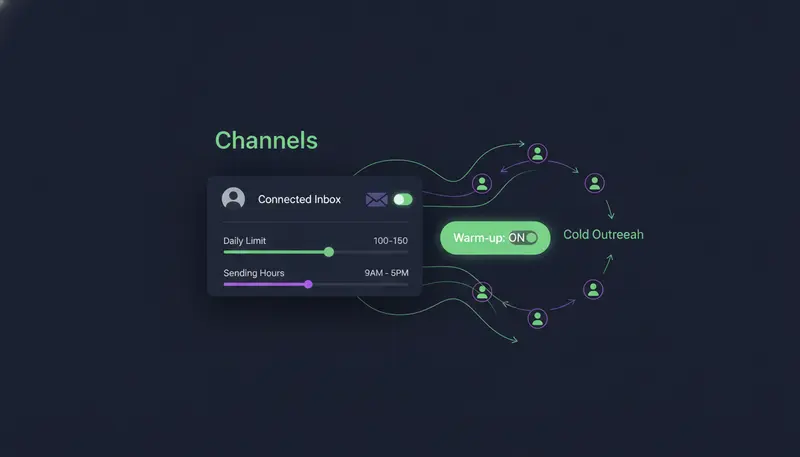
Every plan has the same ceilings, set to keep accounts safe. A mailbox sends at most 100 emails a day. A LinkedIn account performs at most 50 actions a day.
Those are maximums, not targets. A new account should not be near them in its first days.
The daily limit you set on each account is your own control. You can lower it for a sensitive account and raise it once the account looks healthy. You also set the sending days and hours, and messages go out within each lead's local working hours.
Does one mailbox limit apply to the whole team?
No. The limit is per mailbox and per LinkedIn account. If you connect several accounts, each has its own limit and its own warm-up. A lead's follow-ups always come from the account already talking to them, so a conversation doesn't jump between senders.
What does a 3-week ramp look like?
With "Warm up gradually" on, a new email or LinkedIn account ramps up over 3 weeks. You do not have to work out the numbers each day. The platform raises the volume step by step toward the limit you set.
In practice, you spend the first week on setup, small volumes and close reading of drafts. By week two you can see how the account behaves. By week three the account is working toward the limit you chose.
The next step is where most teams slip: they switch warm-up off because the ramp feels slow. The table shows what that trade looks like.
| Warm-up on | Warm-up off | |
|---|---|---|
| Sending volume | Rises gradually over 3 weeks | Goes to the daily limit straight away |
| Risk for a new inbox | Lower, the account builds a pattern | New accounts that send a lot from day one get flagged |
| Your effort | Review drafts and watch health | Same, plus the risk of cleaning up afterwards |
| Best for | New email and LinkedIn accounts | Accounts that already have a long, healthy sending history |
A ramp can feel like lost time. It is cheaper than starting again with a new domain.
How do you warm up a new LinkedIn account?
LinkedIn follows the same idea with different numbers. The ceiling is 50 actions a day per account, and the 3-week ramp applies to new LinkedIn accounts too.
Two details help here. Invites are limited to 280 characters, and the counter in AI Admin turns red when a draft is too long. And a LinkedIn message after an invite waits until the person accepts, up to 21 days.
How does LinkedIn tell you the account is fine?
The "Health" status for a LinkedIn account takes failed sends, invite acceptance and limits into account. A low acceptance rate is a signal to look at who you are inviting and what you say, not a signal to send more.
For wording ideas that give people a reason to accept, see 20 LinkedIn connection message examples.
Which channels should wait until the account is warm?
Start with the channel where you have the most control and the clearest consent position, then add others as the account settles. Email and LinkedIn are the two that have a warm-up ramp in the platform.
WhatsApp and SMS follow different rules. They go only to leads who agreed, and a WhatsApp Business number needs an approved template for the first message. Texting or WhatsApp-ing people who didn't agree to it is one of the common mistakes in the settings guide.
AI phone calls need the calling add-on and a call balance. They are approved like any other message, and a call approved outside calling hours waits until the hours open.
What should you do while the account warms up?
Use the weeks well. The ramp protects the account, but the quality of what you send decides whether anyone replies.
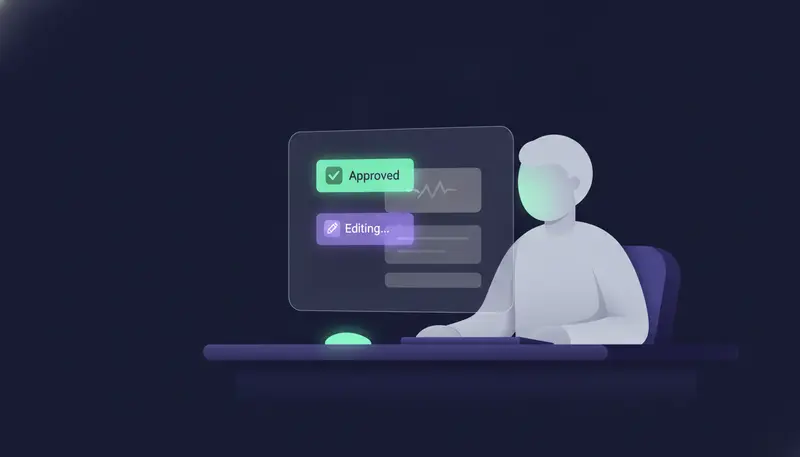
Every message waits in AI Admin as a draft until a person approves, edits or skips it, so you read each one before it goes. This is the right moment to learn what the AI gets right and what it misses.
What if a draft keeps missing?
Don't rewrite the same draft again and again. If it keeps missing, add the missing fact to the brand voice's knowledge. The AI writes from your website and knowledge and states no fact you didn't give it, so a gap in what you gave it is the usual cause.
What happens when someone replies or opts out?
A reply stops the sequence for that lead, so a person can answer. Replies always wait for a person. Opt-out requests such as "stop" or "unsubscribe" are caught by system-level rules before the AI reads the reply.
If your messages are not getting answers, our article on why nobody replies to your cold emails covers five messaging mistakes to look for.
How do you know your account is healthy?
Open the account under Settings, then Channels. The "Health" label reads Healthy, Worth watching or At risk, based on failed sends, LinkedIn invite acceptance and limits. "Check now" runs the check again.
Treat the label as a dashboard light. Healthy means keep going. Worth watching means pause before you raise the limit and look at why. At risk means lower the daily limit and fix the cause first.
Weekly health check during warm-up
- Read the "Health" label on every connected account
- Press "Check now" after you change anything
- Look for "Send failed" cards in AI Admin and read why they failed
- Check that the "Sending domain" still passes
- Raise a daily limit only when the account is Healthy
- Make sure no one on the list is being contacted on WhatsApp or SMS without agreeing to it
Passing sending problems are retried automatically with the same text. You can also approve a failed card again to retry it now.
What mistakes get new accounts flagged?
Most of them come down to rushing. The same few turn up again and again.
The first is full volume on a brand-new inbox with warm-up off. The second is skipping the domain checks, so mail goes out without proper authentication. The third is contacting people who didn't agree, especially by text or WhatsApp. The fourth is ignoring a "Worth watching" label and raising the limit anyway.
If you want the wider list, we cover seven cold outreach mistakes that get email and LinkedIn accounts flagged. And when you are ready to put the whole thing together, the outreach sequence setup checklist takes you through your first launch.
Frequently asked questions
How long does it take to warm up a new email account for cold outreach?
With "Warm up gradually" on in ZOROSDR, the ramp for a new email or LinkedIn account takes 3 weeks. Keep checking the account's health during that time rather than treating the three weeks as a countdown.
How many cold emails can I send a day from one mailbox?
At most 100 a day per mailbox on every plan. That is a ceiling for a mailbox that has settled, not a starting point for a new one.
What is the daily limit for LinkedIn?
At most 50 LinkedIn actions a day per account. A new LinkedIn account also ramps up over 3 weeks when warm-up is on.
Can I turn warm-up off?
You can, but it is risky for a brand-new account. Sending a lot from day one is a common reason accounts get flagged. Leave it on for new email and LinkedIn accounts.
Do I need SPF, DKIM and DMARC before I start?
Yes, check them first. The "Sending domain" check in Settings looks at all three and tells you how to fix any part that fails.
Summary
Warming up a new account is mostly patience and a few settings. Check your domain, set a daily limit that suits a new account, leave warm-up on for the 3-week ramp and watch the "Health" label as you go.
A person approves every message before it goes, so you stay in control while the volume rises. To see the settings for yourself, start the 14-day free trial and connect your first inbox. Every new workspace begins with 100 AI-written messages, 25 prospect-finding credits and 10 WhatsApp messages to test with.