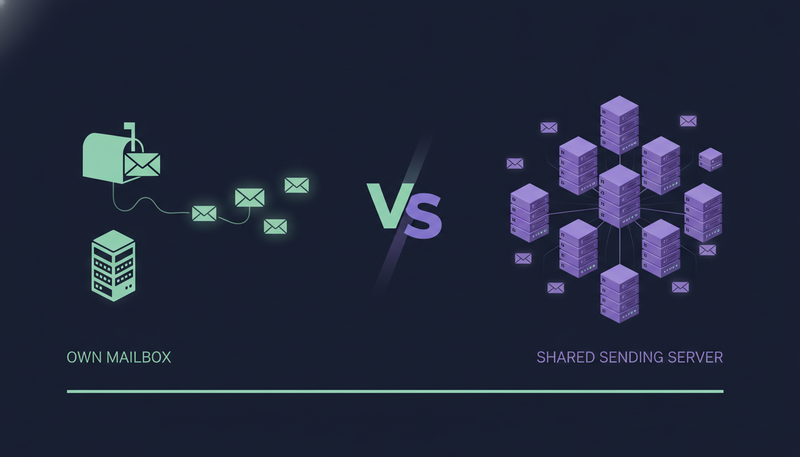
The question of cold email own mailbox vs shared sending server comes down to a worry most teams share: we're afraid something will go wrong in our name. For most teams, sending from your own mailbox is the safer choice, because the reputation you build or damage stays yours and isn't pooled with strangers.
By the end you'll know how the two setups differ, where each one can hurt you, and how to set up your own mailbox with sensible limits.
What is the difference between a shared sending server and your own mailbox?
A shared sending server is infrastructure that several senders use at once. Your messages leave from the same place as theirs. Tools sometimes offer it because it can be quick to start.
Your own mailbox is the Gmail, Outlook or other account you already use, connected to the tool. The message leaves from your account, on your domain, and sits in your Sent folder like any other email.
That sounds like a small detail. It decides who carries the risk, and who decides how much you send.
| Shared sending server | Your own mailbox | |
|---|---|---|
| Where messages leave from | Infrastructure other senders use too | Your own connected account |
| Whose reputation carries them | Pooled with other senders | Your own domain's |
| Setup effort | Often lighter at the start | A few steps: connect, set limits, check domain |
| Who sets the sending pace | Depends on the provider | You set the daily limit and hours |
| Where a mistake lands | Can spread across senders | Stays with your own domain |
Why can a shared sending server put your reputation at risk?
Mailbox providers judge senders by their history. Bounces, complaints and spam reports build a record against the address and the infrastructure behind it. On shared infrastructure, part of that record is written by people you have never met.
If another sender on the same server mails a bad list, you may feel it even though you did nothing wrong. You also can't always see who else is sending or how they behave.
Here's the catch: shared servers are not wrong for every use. The trouble is that you give up control of something that is slow to rebuild once it's damaged. For cold outreach, where your name and your domain are on every message, that is a lot to hand over.
Is sending from your own mailbox really safer?
Mostly yes, with one condition. When messages go out through your own connected accounts, your outreach inherits your own domain's authority. Nobody else's behaviour touches it.
The condition is that your habits now count for everything. If you send too much, too soon, or to a poor list, the damage lands on you. That is why limits and warm-up matter more with your own mailbox, not less.
ZOROSDR works this way. Messages are sent from your own accounts, not a shared server, and inside each lead's working hours. Every plan also caps sending to keep accounts safe.
What can go wrong with your own mailbox?
Owning the mailbox does not make you immune. A few mistakes cause most of the trouble.
The first is full volume on a new inbox with warm-up switched off. The second is a list full of bad addresses, which brings bounces. The third is a domain that isn't set up properly. The fourth is ignoring people who ask you to stop.
The next point is where most teams slip: they connect their main business mailbox without thinking about it. If that domain also carries your customer email, decide on purpose what you are willing to risk. Our article on cold outreach mistakes that get email and LinkedIn accounts flagged goes through the common ones.

How do SPF, DKIM and DMARC fit in?
These are three checks that tell receiving servers your email is genuinely from you. SPF lists which servers may send for your domain. DKIM adds a signature to each message. DMARC tells receivers what to do when those checks fail.
On your own mailbox, they are your job to get right. Skip them and your messages look less trustworthy, however good the writing is.
In ZOROSDR, the Sending domain check in Settings looks at your email domain's setup (SPF, DKIM and DMARC) and says how to fix each part. Deliverability also includes address checks and bounce handling, plus the daily limits above.
Domain health before your first send
- SPF is in place for the domain you send from
- DKIM signing is switched on
- DMARC is set up
- Email addresses are checked before you send
- Bounces are handled, not ignored
- Daily limits are set below the maximum for a new inbox
How do you set up your own mailbox for cold outreach safely?
The setup is short. What matters is doing the steps in order and not skipping the slow ones.
- 1Connect the accountadd your Gmail, Outlook or other mailbox under Settings, in the channels section, so messages go out from your own address.
- 2Set the daily limit and hourschoose how many messages a day and which hours and days it sends. A mailbox sends at most 100 a day.
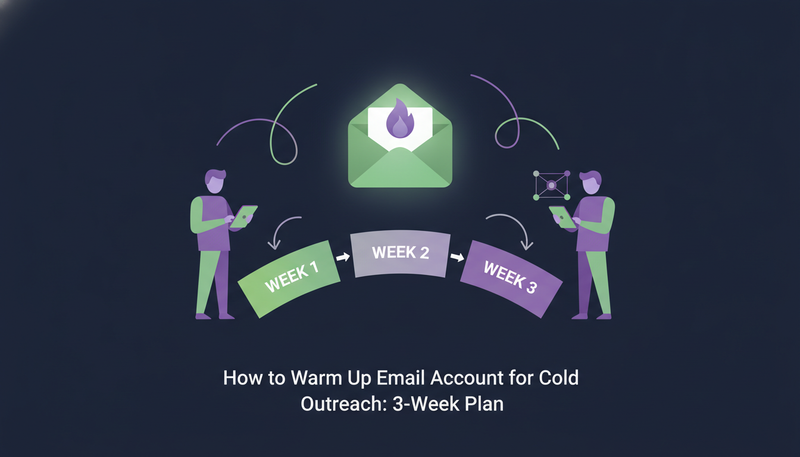
- 3Leave warm-up on'Warm up gradually' ramps a new email or LinkedIn account up over 3 weeks, which protects it from looking suspicious.
- 4Add a signaturewrite one, or leave it empty to use your brand voice's signature.
- 5Save and check the domainpress 'Save changes', then run the Sending domain check and fix what it flags.
- 6Watch Healtheach account shows Healthy, Worth watching or At risk, based on failed sends, LinkedIn invite acceptance and limits. 'Check now' checks again.
The full channel setup is also covered on the channels page.
Cold email own mailbox vs shared sending server: how do you choose?
Pick your own mailbox if you care about your domain, want to set your own pace, and are willing to spend an hour on setup. That fits founders, sales managers and agency owners who put their own name on every message.
A shared server may suit a short, low-stakes test where you don't mind the reputation being pooled. For anything you plan to keep running, the control of your own account is usually worth the extra setup.
Whatever the tool says, ask it these questions.
Questions to ask any sending tool
- Do messages go out from my own account or from a shared server?
- Can I set daily limits and sending hours per account?
- Is there a gradual warm-up for new accounts?
- Does it check SPF, DKIM and DMARC and tell me how to fix them?
- What happens to bounces and unsubscribe requests?
- Does a person approve messages before they leave?
Does the same logic apply to LinkedIn, WhatsApp and other channels?
Yes. The safest setup on every channel is your own account, used within safe daily limits. ZOROSDR runs email, LinkedIn invites and messages, WhatsApp Business, Instagram DMs, website chat, SMS and AI phone calls in one sequence, and each step is written for that lead and that channel.
Sending stays inside each lead's working hours and inside platform limits that protect account health. For LinkedIn, that means up to 50 actions a day per account.
Consent matters most on WhatsApp and SMS. Only message people who agreed to it, and only mark consent in an import when it is true. A column saying yes records consent, and only alongside a phone number.
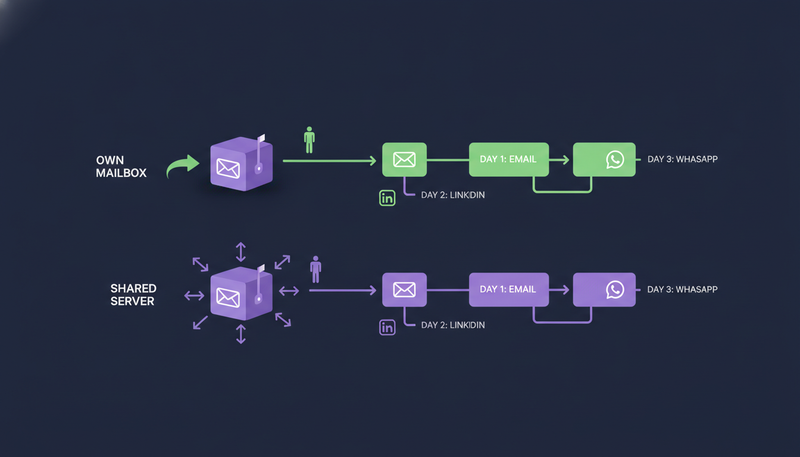
If you are planning the sequence itself, read how to build a multichannel sales outreach sequence.
Does human approval change the safety picture?
It changes it a lot. A safe mailbox can still send something wrong, such as a wrong name, an invented claim or a message to someone who already opted out.
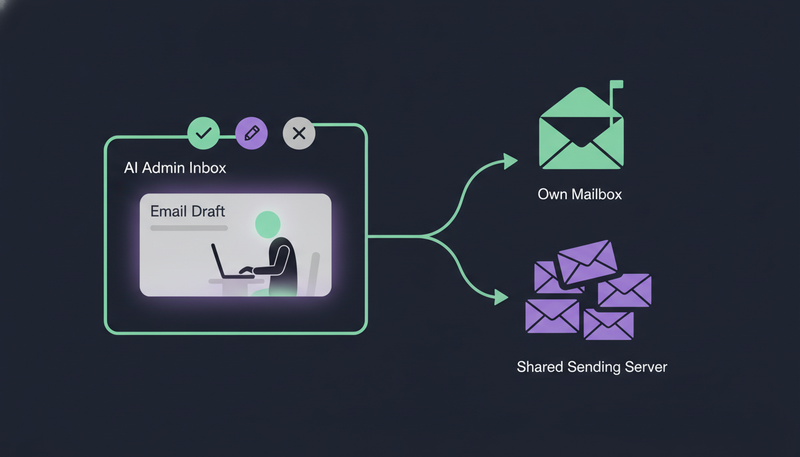
In ZOROSDR, every first message lands in your inbox as a draft. You approve it, edit it or skip it, and nothing goes out until a person says so. Replies to leads always wait for a person too.
The writer is locked to your brand voice and knowledge, and if it doesn't know a fact, it says it will confirm instead of inventing one. System-level rules also catch requests like stop or unsubscribe before the AI reads the reply. You can read more on the guardrails page and the security and privacy page.
Frequently asked questions
Is a shared sending server always bad for cold email?
No. It can be fine for a short test. The risk is that your reputation is pooled with other senders you can't see or control, so one bad sender can affect everyone. For ongoing outreach, your own mailbox keeps that risk with you.
Does ZOROSDR send from a shared server?
No. Messages are sent directly through your own connected accounts, such as Gmail, Outlook and LinkedIn, so your outreach uses your own domain authority.
How many cold emails can one mailbox send a day?
Every plan sends up to 100 emails a day per mailbox and 50 LinkedIn actions a day per account. You set the daily limit and hours for each account, and you can keep them lower for a new inbox.
Do I need SPF, DKIM and DMARC for cold email?
They are the standard checks that show your email really comes from your domain. The Sending domain check in ZOROSDR reviews all three and tells you how to fix each one.
Can I try this without a card?
Yes. The 14-day free trial includes every tool, needs no card and can be cancelled at any time. Each new workspace gets 100 AI-written messages, 25 prospect-finding credits and 10 WhatsApp messages.
Summary
For cold outreach, your own mailbox is the safer base: the reputation is yours, and so are the limits, hours and warm-up. A shared sending server trades that control for a quicker start.
Set daily limits, keep warm-up on, check SPF, DKIM and DMARC, and have a person approve every first message. When you're ready, start the 14-day free trial or see the pricing.