You sent the sequence, and now replies are landing between meetings, in more than one inbox, with an out-of-office note sitting next to a real yes. Here is how to automate inbox management and meeting booking with AI, so the yes gets answered fast and nothing wrong goes out in your name.
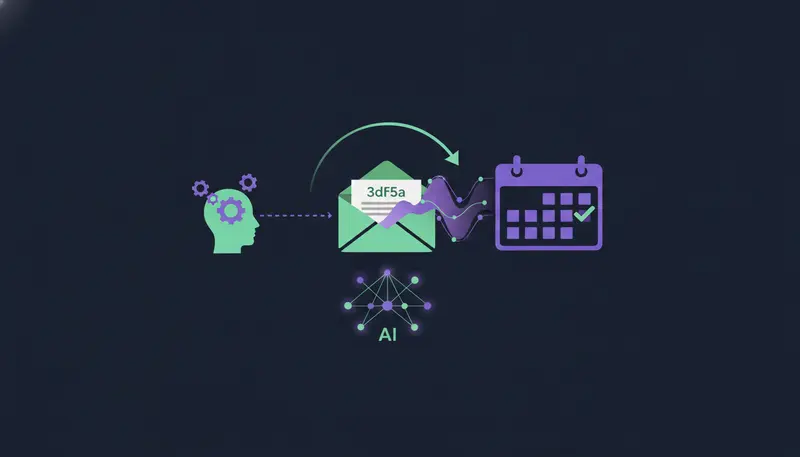
An AI inbox manager reads each reply and sorts it by sentiment: interested, objection, out of office or unsubscribe. It drafts a reply that fits the conversation, pulls a referral contact out of an out-of-office note when one is given, and proposes calendar slots. A person approves before anything goes out.
By the end you will have a five-step setup, a first-week checklist and a clear view of where a person should stay in the loop.
Why speed-to-lead matters when a prospect replies
A reply is the moment a prospect is paying attention to you. By tomorrow they are in other meetings, and your message is one more line in a full inbox.
We won't quote a figure for how much faster answers convert, because we have no number we can stand behind. The logic holds without one: someone who just wrote "tell me more" is warmer today than next week.
Here's the catch: speed without care is worse than slow. A quick answer with a wrong fact, or a pitch to someone who just asked you to stop, costs more than a few hours of delay.
The aim is fast and right. Software does the sorting and the first draft in seconds. A person makes the final call.
| Manual inbox | AI-assisted inbox | |
|---|---|---|
| Reading replies | You read each one when you find time | Every reply is read and sorted for you |
| First draft | Written from scratch | A suggested answer waits for you |
| Opt-outs | Easy to miss in a busy inbox | Caught by fixed rules before the AI reads the reply |
| Follow-ups | Depends on memory | The sequence stops once a lead replies |
| Final say | You | Still you, because replies always wait for a person |
Step 1: Automated sentiment sorting
Sentiment sorting is the base layer. Before anything is drafted, each reply gets a label, so the right thing happens next.
Most AI inbox managers use buckets such as interested, objection, out of office and unsubscribe. ZOROSDR reads every reply and sorts it into interested, a question, an objection, not now or stop.
Each bucket calls for a different move. Interested means offer a time. A question gets an answer built only from facts you have given. An objection gets one honest reply, not an argument. Not now means pause. Stop means stop.
An out-of-office note sits closest to not now. We come back to it in step 4.
What good reply sorting looks like
- Every reply gets one clear label
- The label decides what is drafted next
- Stop and unsubscribe requests never reach a draft
- You can see the lead's last message beside each draft
- Rules you write flag the replies a person should handle
Step 2: Catch opt-outs before the AI reads anything
Opt-outs are the one reply type you never want a model to interpret. ZOROSDR applies system-level rules that catch "stop" or "unsubscribe" before the AI reads the reply, so there is no accidental follow-up.
The sequence also stops for a lead as soon as they reply, opt out, book a meeting or move to a closing stage. That keeps a scheduled follow-up from landing on top of a real conversation.
For the full picture, read what happens when a lead replies to an AI SDR or unsubscribes.
Step 3: Draft context-aware replies in your own voice
A context-aware reply answers what the person actually wrote. In ZOROSDR, a reply draft quotes the lead's last message, and the card shows "Why this draft" beside it, so you can see the reasoning before you approve.
The draft is written from your website and your knowledge, in your brand voice. It states no fact you did not give it. If it does not know something, it says it will confirm rather than inventing an answer.
That matters most on questions about price, terms or timing. A confident wrong answer is exactly what most teams fear from AI.
Replies always wait for a person, even on sequences that send outreach automatically. They collect in AI Admin, under the Replies tab.
- 1Open AI Admincheck it once or twice a day and empty the tabs from left to right.
- 2Read the lead's messagestart with what they wrote, not with the draft.
- 3Edit in the cardchange the text right there. Your edits are what goes out.
- 4Press Approve and sendnothing leaves until you do.
- 5Ask for a rewrite if it missessay what to change, for example "shorter, mention the case study". After 5 rewrites, edit it yourself.
When many replies arrive at once, work in batches. You can approve up to 25 drafts, rewrite 10 and skip 100 at a time.
Drafts you can handle in one batch
The most common slip is approving a reply without reading the lead's message above it. For objection wording, see how to handle common cold email objections.
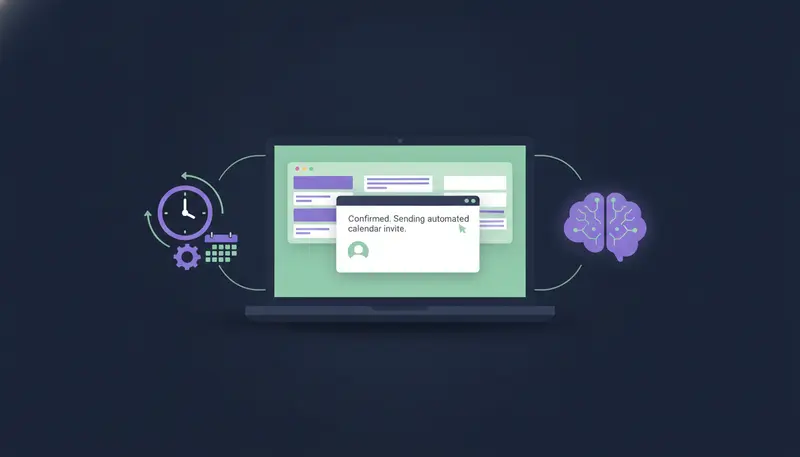
Step 4: Handle out-of-office replies and referrals
Out-of-office replies are small but useful. They often give a return date and sometimes name a colleague to contact instead.
A good inbox manager pauses outreach until the person is back and reads the referral name, so you can reach the right person. A human should still approve anything sent to that colleague.
ZOROSDR sorts replies into interested, a question, an objection, not now or stop, and replies always wait for a person. We would rather not overstate it: if you need automatic referral extraction from out-of-office notes, ask the team and they will confirm exactly how it works.
Until then, the manual route is quick. Read the note in the Replies tab, and if a colleague is named, start a fresh conversation with them. Only say someone pointed you their way if the note actually says so.
Step 5: Propose calendar slots and book the meeting
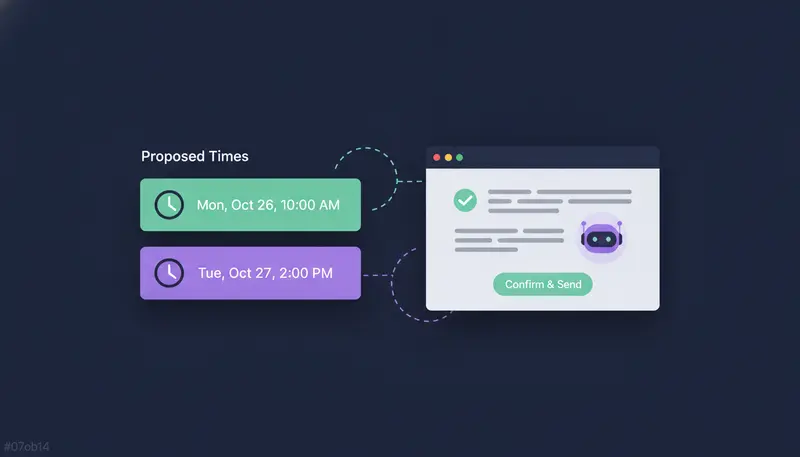
When the answer is yes, the reply should carry the next step. Don't ask "when suits you?" and wait a day. Offer two specific times, or a booking link, in the same message.
Because you edit and approve every reply, you can add your times or booking link before it goes. Calendars are among the tools listed on the integrations page, and the team will confirm how yours connects.
- 1Check the labelthe reply is sorted as interested.
- 2Answer any question firstuse only facts you have given the AI.
- 3Offer two times or a booking linkmake the next step easy.
- 4Approve and sendread it once, then send.
- 5Let the sequence stoponce the lead replies or books, it stops for them.
- 6Move the lead ona hand-off can send a booked lead to another sequence, such as customer success.
On the pipeline board, leads move through Queued, Outreach, Engaged and Meeting, so you can see who is waiting on you.
How to automate inbox management and meeting booking with AI, safely
Automation is only useful if you trust it. Three protections do most of the work.
First, approval. Every first message lands in your inbox as a draft, and nothing goes out until a person approves, edits or skips it. Second, facts only. The AI works from your brand voice and knowledge. Third, opt-outs, handled by fixed rules as in step 2.
Delivery matters too. Messages go through your own connected accounts, such as Gmail or Outlook, so your outreach and replies sit on your own domain. Built-in checks cover SPF, DKIM and DMARC, with automated bounce handling.
Read more on the guardrails page.
What to set up in your first week
You do not need a big project. Aim for one sequence live, one person approving, and a habit of opening AI Admin once or twice a day.
First-week checklist
- Connect the mailbox you send from
- Write your brand voice and add the facts the AI may use
- Add rules, such as who never to contact and when to hand a conversation to a person
- Set "I approve every message"
- Decide your two usual meeting times or booking link
- Turn on the sequence and open AI Admin daily
Every new workspace starts with sandbox credits, so you can test lead quality before you commit to anything.
After the trial, the Starter plan is $99 a month.
Frequently asked questions
Can AI manage cold email replies without a person?
It can read, label and draft. In ZOROSDR, replies always wait for a person to approve, even on sequences that send outreach automatically.
What categories should replies be sorted into?
ZOROSDR sorts replies into interested, a question, an objection, not now or stop. Many tools add out of office as its own label.
How does AI propose meeting times?
The draft answers the lead and you add two times or a booking link before approving. The team will confirm how your calendar connects.
Are unsubscribe requests handled safely?
Yes. System-level rules catch "stop" or "unsubscribe" before the AI reads the reply, and the sequence stops for that lead.
Does it send from my own mailbox?
Yes. Messages go through your own connected accounts, such as Gmail or Outlook, not shared servers.
Summary
Sort every reply, catch opt-outs with fixed rules, draft in your own voice from your own facts, handle out-of-office notes with care, and offer a time in the reply that says yes. Keep a person approving throughout.
The next step is simple: start the 14-day free trial, or book a demo if you would like to see it with a person first.