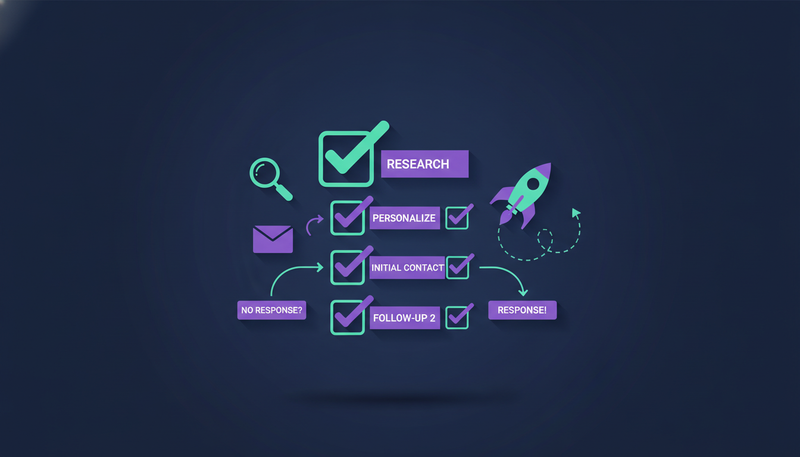
You want to start prospecting, but nobody has the time to do it every day, and your last batch of generic messages got no replies. The short answer is to build your first sequence in a fixed order: voice, audience, rules, steps, sending accounts, then approval. This outreach sequence setup checklist follows that order, using the five steps inside ZOROSDR.
By the end you will have a list to tick through before you press “Turn on sequence”, plus the mistakes to avoid on the way.
What belongs on an outreach sequence setup checklist?
Three things sit outside the sequence builder, and each one blocks you later if you skip it. Do them in your first session.
Connect the account you send from. In the app that is Settings › Channels › “Connect an inbox”, plus “Connect LinkedIn” if you use it. Then open Brand voice, read every line, tick “Reviewed” and save. Sequences can't go live until that is done.
Finally, get leads in. Import a CSV on the Leads page, search with the Lookalike Prospect Finder, or add one person with “Add a lead”.
Before you open the sequence builder
- Inbox connected under Settings › Channels
- LinkedIn connected, if you plan to use it
- Brand voice read line by line, “Reviewed” ticked and saved
- At least one lead or list ready to add
- One clear idea of what counts as success for this first run
- A named person who approves drafts each day
The last two items aren't software settings. They are decisions, and they shape every step below.
How do you set the goal and brand voice?
This is the first step in the builder, called Basics. You choose the type and goal: what counts as success (a meeting, a reply, an accepted LinkedIn connection) and what the AI aims for, in your own words.
Pick one goal for the first run. A sequence that chases a meeting, a reply and a connection all at once gives you nothing clear to judge a draft against.
Then comes brand voice, which is who the AI writes as. ZOROSDR writes in your voice from your website and the knowledge you give it, and it states no fact you didn't give it. If it doesn't know something, it says it will confirm.
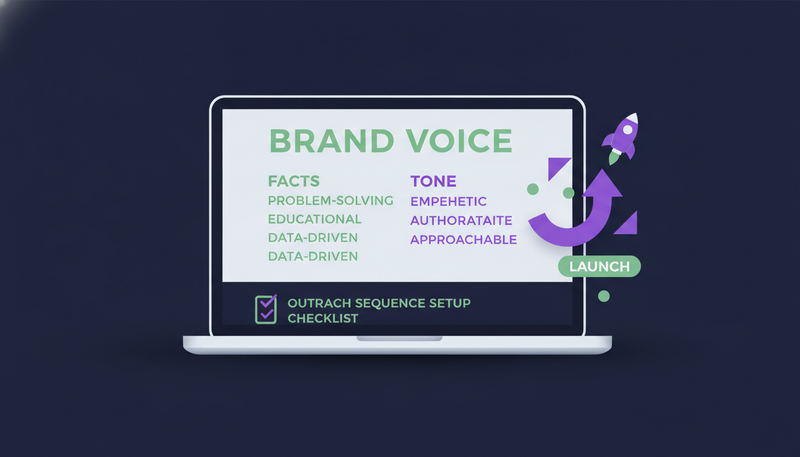
If a draft keeps missing, don't rewrite it again and again. Add the missing fact to the brand voice knowledge instead.
Who should your first sequence contact?
The second step is Audience. Under “Who it's for” you pick a list to add its leads now. Tick “Add new matching leads automatically” to keep adding new ones while the sequence is live. You can also add leads from the Leads page.
Where the leads come from matters, and ZOROSDR has two AI prospect finders for it.
| Lookalike Prospect Finder | High-Intent Leads Finder | |
|---|---|---|
| What it finds | More companies and people like your best customers | People at companies in a buying moment |
| Pick it when | You know who your best customers are | You want to reach people while a need is live |
| Best fed by | A clear picture of your best-fit customers | A clear idea of the moment you sell into |
If your list mixes different kinds of buyer, use “Persona per segment”. It lets you speak differently to different groups, for example one voice for clinics and another for real estate. One message for everyone is how outreach turns generic.
Which rules keep a sequence safe and on target?
“Rules” sits in the same step, and it's where most teams slip. They leave it empty and hope the AI guesses what they would never say. Write the rules the way you'd brief a new salesperson, one per line.
Two kinds do different jobs. “Only contact people who...” and “Never contact...” screen outbound leads. “Hand the conversation to a person when the lead...” flags replies for you. “Hand-offs” can also move a lead to another sequence when it reaches a stage, for example a booked meeting moving them to customer success.
Opt-outs need no rule from you. System-level rules catch “stop” and “unsubscribe” before the AI even reads the reply. The sequence also stops for a lead as soon as they reply, opt out, book a meeting or move to a closing stage.
How many steps and which channels should you use?
The third step is Messages. The quickest route is “Suggest steps with AI”, which plans the whole sequence from the choices you make.
- 1Pick the channelschoose which of your connected channels the sequence should use.
- 2Set steps and pacesay how many steps you want and how quickly they follow each other.
- 3Add a focustell the AI anything it should lean on, such as a particular offer or problem.
- 4Read the suggestioneach step comes with a brief and an example, in your voice and only from your own facts.
- 5Use itpress “Use these steps” or “Add after my steps”, adjust anything, then Save. Nothing changes until you do.
“Personalise for each lead” is on by default, so the AI writes each step fresh for every lead from your brief and what it knows about them. Turn it off to send the same text to everyone, and use the Insert buttons for lead fields like first name and company.
For a first run, keep it short: fewer steps and one or two channels. Our guide to building a multichannel sales outreach sequence covers channel mixes, and how many follow-ups to send and when covers the pace.
Keep those limits in mind as you review the steps, not after.
Which accounts should the sequence send from?
The fourth step is Send from. ZOROSDR sends through your own connected accounts, such as Gmail, Outlook and LinkedIn, rather than a shared server. Your outreach then carries your own domain authority. We compare the two in own mailbox vs shared sending server.
Two protections run in the background. Built-in checks cover SPF, DKIM and DMARC alignment, and bounces are handled automatically. Sequences also send within the lead's local working hours and respect safe daily platform limits, which protects account health.
Before you choose your sending accounts
- The inbox or LinkedIn account you want is connected
- That account is the one selected under “Send from”
- SPF, DKIM and DMARC checks pass for your domain
- You expect to stay within the platform's safe daily limits
- LinkedIn is included only if invites and messages suit this audience
Fix anything that fails here before launch. For help with an account, write to support@zorosdr.com.
How should approval work on your first launch?
The last step is Review and turn on. Under “Who approves messages” you choose “I approve every message (recommended)” or send sequence messages automatically. Replies always wait for a person, even on automatic sequences.
For a first launch, take the recommended option. Every initial message lands in AI Admin under “To approve” as a draft. You approve, edit or skip it, and nothing is sent until you do.
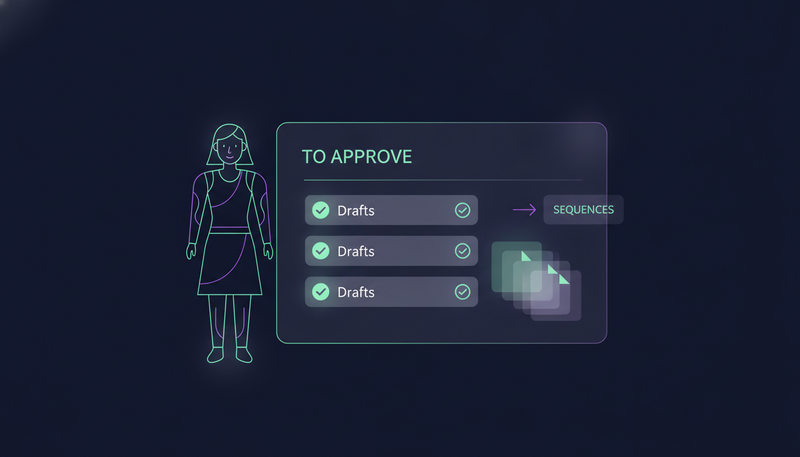
Batches help once drafts pile up. In AI Admin you can tick “Select” on cards, or “Select all”, and work through them together, up to these limits at a time:
Drafts AI Admin handles in one batch
Skipping an outreach draft moves the lead on to the next step after its wait. When a lead replies, their waiting drafts are withdrawn and a reply draft appears instead.
Under “Tone for each lead”, the AI matches each message to how the lead likes to be written to, guessed from the job title. Tick “Analyse each lead's personality first” to read their LinkedIn profile once, at 4 credits a lead, for a sharper match. The approval, facts-only and opt-out guardrails are explained in full on their own page.
What can you test before you pay?
The trial lets you run this whole checklist at no cost. You get 14 days of every tool with no card needed, and you can cancel at any time. Each new workspace also starts with sandbox credits to test lead quality.
After the trial, plans are Starter at $99 a month, Growth at $249 and Agency at $599. The Agency plan adds a client portal under your own brand, with a separate workspace for each client.
What is the last check before you press Turn on sequence?
Run through this once more. The “Ready to go live?” list shows what is ready and what is still open.
- 1Read the list“Ready to go live?” shows every open item.
- 2Fix what's openpress “Fix this” and it jumps to the step that solves it.
- 3Confirm approvalcheck that “Who approves messages” is set the way you intend.
- 4Savepressing “Turn on sequence” with unsaved changes is a common mistake.
- 5Turn it onpress “Turn on sequence” and drafts start arriving in AI Admin.
Then start small. Read the first drafts closely, and fix the voice or the rules rather than patching each draft by hand.
Frequently asked questions
What is the right order for setting up an outreach sequence?
Start with your connected account and reviewed brand voice. Then work through the builder: Basics, Audience (including rules), Messages, Send from, and Review and turn on.
Can the AI send messages without my approval?
On the recommended setting, every message is a draft until a person approves, edits or skips it. You can choose to send sequence messages automatically, but replies always wait for a person.
What happens when a lead replies or asks to stop?
The sequence stops for that lead when they reply, opt out, book a meeting or move to a closing stage. Requests like “stop” or “unsubscribe” are caught by system-level rules before the AI reads the reply.
Do I need a credit card to try it?
No. The 14-day free trial covers every tool with no card needed, and you can cancel at any time. A new workspace starts with 100 AI-written messages, 25 prospect-finding credits and 10 WhatsApp messages.
Summary
A good first sequence comes from doing things in order: voice, audience, rules, steps, sending accounts, then approval. Keep the first run small and read every draft.
The next step is to start the 14-day free trial and work through the checklist, or book a demo to see it with someone from the team.