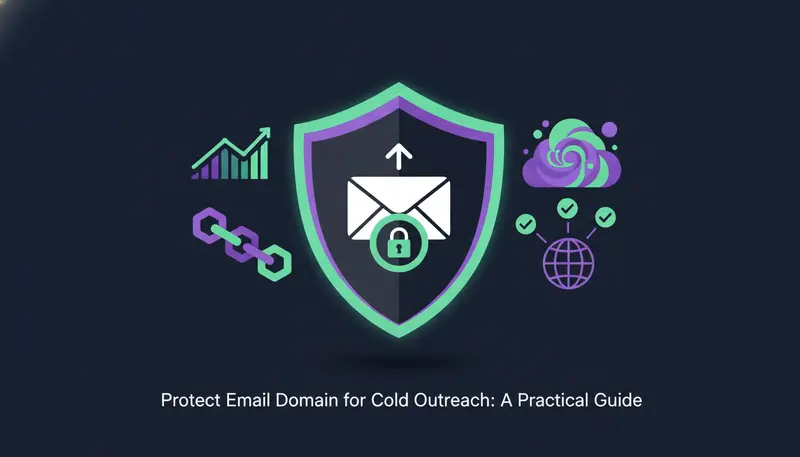
You want outreach running every day, but you don't want it to damage the email your team and customers depend on. To protect your email domain in cold outreach, send from a separate domain, set up SPF, DKIM and DMARC, warm new mailboxes slowly, stay under daily limits and write only to clean, relevant addresses.
By the end you will have a setup you can follow step by step, a checklist for the first send and a routine for spotting trouble early.
Why does cold outreach put your email domain at risk?
Your domain has a reputation. Mailbox providers build it from what happens to your mail over time: whether it bounces, gets ignored, gets reported or gets answered.
Cold outreach is where that reputation is easiest to damage. You are writing to people who did not ask to hear from you, so there is little room for error.
Most of the harm comes from three habits:
- Sending a lot of mail, fast, from an account with no history.
- Writing to addresses that bounce.
- Carrying on after someone asked you to stop.
Here's the catch: none of these feels like a mistake while you are doing it. A big first-week push looks like momentum. The cost shows up later, when real customer replies start landing in spam.
Should you send cold email from your main domain or a separate one?
Use a separate one. ZOROSDR's own getting-started guidance lists sending from your main company domain as a common mistake. Whatever happens to outreach mail should not touch the inboxes your team lives in.
Pick a name that is clearly yours, so recipients recognise who is writing. Then treat that domain as its own asset, with its own setup and its own checks.
There is a second reason to be careful. ZOROSDR sends through your own connected accounts, such as Gmail or Outlook, not through a shared server. You do not share a sending reputation with strangers, and your outreach inherits your own domain's standing. It also means that standing is yours to look after.
| Main domain | Separate outreach domain | |
|---|---|---|
| If outreach goes wrong | Your everyday email can be affected | The problem stays with the outreach mailboxes |
| Who shares the sending reputation | Your whole company | Only your outreach accounts |
| Setup effort | None | One more domain to set up and check |
| Fit for cold outreach | Not recommended | Recommended |
How do you set up SPF, DKIM and DMARC for cold email?
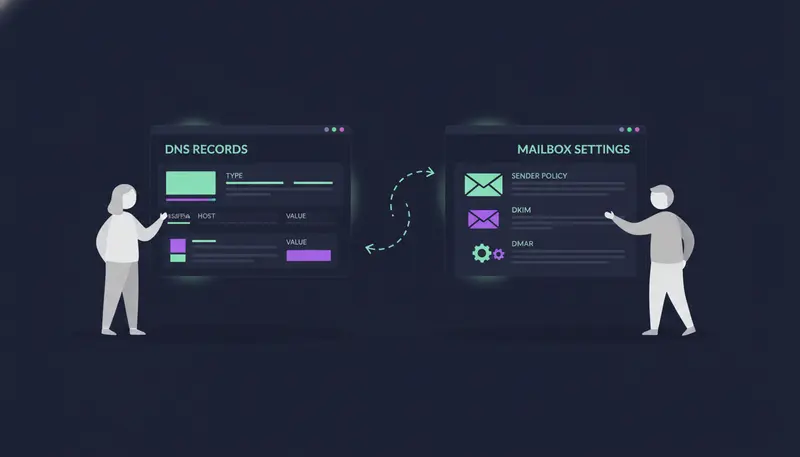
Three records tell receiving servers that your mail really comes from you. SPF lists the servers allowed to send for your domain. DKIM adds a signature showing the message came from you and was not changed on the way. DMARC tells receivers what to do when those checks fail.
You do not have to guess whether they are right. In ZOROSDR, open Settings, then channels, and find Sending domain. It checks your domain's SPF, DKIM and DMARC setup and says how to fix each part.
- 1Choose the outreach domainregister a separate domain, not your main company one, so everyday email stays out of harm's way.
- 2Connect the mailboxadd a Gmail, Outlook or other mailbox on that domain under Settings, channels.
- 3Run the Sending domain checkit reviews SPF, DKIM and DMARC and tells you what needs fixing.
- 4Fix each part at your domain providerchange the record it points to, then check again.
- 5Confirm before the first senddo not turn on a sequence until all three read as set up.
The next step is where most teams slip: they check once and never again. DNS records get edited, mailboxes get added, and a quiet change by someone else can break a check that passed last month. Run the check again whenever something about your sending setup changes.
If you are building the whole setup from nothing, our guide to cold email infrastructure from scratch walks through it in order.
How slowly should a new mailbox start sending?
Slower than feels natural. A brand-new inbox that suddenly sends a lot looks odd, and new accounts that send heavily from day one get flagged.
ZOROSDR has a setting for this called Warm up gradually. Leave it on for new email and LinkedIn accounts. It ramps sending up over 3 weeks instead of starting at full volume.
The common mistake is setting the full daily limit on a brand-new inbox with warm-up off. It feels efficient on day one and can cost you the domain's standing later.
What should you do while the account warms up?
You do not need to manage the ramp by hand. Add the account, leave the setting on and let it run.
Use those weeks to get the rest right. ZOROSDR refuses to turn a sequence on until the brand voice is marked Reviewed, so read the voice, check the facts it writes from and look over your first drafts. That wait is useful, not a delay.
How many cold emails should each mailbox send per day?
Treat the limit as a ceiling, not a target. Every plan sends up to 100 emails a day per mailbox and 50 LinkedIn actions a day per account, set to keep accounts safe.
To set your own limits, open each account under Settings, channels. Choose the Daily limit, the sending hours and the days, then press Save changes. Messages go out in each lead's working hours, which keeps sending steady instead of bunched up.
Our guide on how many cold emails to send per day per inbox goes deeper on pacing.
How does a clean list protect email domain cold outreach?
Bounces are one of the fastest ways to hurt a sender. ZOROSDR runs address checks and handles bounces for you, so bad addresses are caught instead of repeated.
The better protection is a list that fits. The Lookalike Prospect Finder looks for companies and people like your best customers. The High-Intent Leads Finder looks for people at companies in a buying moment. Writing to people who plausibly care gives you fewer reasons to be reported.
You can also write rules like a brief for a new salesperson, one per line. 'Only contact people who...' and 'Never contact...' screen outbound leads before anything is drafted. In a sequence, a branch step can check whether a lead has a usable email address, and a Find email or phone step can look for one.
If mail is already landing in spam, work through the diagnostic checklist for cold emails going to spam.
Before you send the first message
- Outreach runs on a separate domain, not your main one
- SPF, DKIM and DMARC are set up in the Sending domain check
- Warm up gradually is on for new email and LinkedIn accounts
- Daily limit, sending hours and days are set on each account
- The brand voice is marked Reviewed
- Your rules say who to contact and who never to contact
- Someone owns approving drafts and answering replies
What should you do about opt-outs, replies and wrong messages?
Domain damage is not only technical. A message with a wrong claim, or one sent to someone who said stop, produces complaints, and complaints cost reputation.
ZOROSDR builds three guards into the workflow:
- Approval first. Every initial message lands in your inbox as a draft. Nothing goes out until a person approves, edits or skips it.
- Replies wait for you. Replies to leads always wait for a person.
- Opt-outs come first. System-level rules catch 'stop' or 'unsubscribe' before the AI even reads the reply, so nobody gets an accidental follow-up.
The AI also writes only from your brand voice and knowledge. If it does not know a fact, it says it will confirm instead of inventing an answer. You can read more on the guardrails page.
How do you monitor domain health after launch?
Check on it the way you check a pipeline. In Settings, channels, each account has a Health label: Healthy, Worth watching or At risk. It is based on failed sends, LinkedIn invite acceptance and limits, and Check now runs the check again.
Pair that with the Sending domain check, which re-reads your SPF, DKIM and DMARC setup. A short weekly look is enough to catch a slow slide before it becomes a problem.
What should you do when Health slips?
- 1Press Check nowconfirm the label is current before you change anything.
- 2Re-run Sending domainmake sure SPF, DKIM and DMARC still pass.
- 3Lower the daily limitgive the account room to recover.
- 4Tighten your rulesnarrow who you contact, and look at which leads failed to send.
- 5Raise volume slowlygo back up only when the label improves.
The pattern is the same each time. Slow down, check the setup, fix the list, then speed up.

Frequently asked questions
Can cold email hurt my main company domain?
Yes. If you send cold outreach from your main domain and it gets flagged, your everyday email can suffer too. Use a separate domain for outreach so your main one stays safe.
Do I need to warm up a new mailbox?
Yes. In ZOROSDR, leave Warm up gradually on for new email and LinkedIn accounts. It ramps sending up over 3 weeks instead of starting at full volume.
How many emails can one mailbox send per day?
Every ZOROSDR plan sends up to 100 emails a day per mailbox and 50 LinkedIn actions a day per account. These are ceilings, so start lower on new accounts.
Does ZOROSDR send from a shared server?
No. Messages go out through your own connected accounts, such as Gmail or Outlook, so your outreach inherits your own domain's standing.
Does a person approve every message?
Yes. Every initial message lands as a draft, and nothing goes out until a person approves, edits or skips it. Replies to leads also wait for a person.
Summary
To protect your email domain in cold outreach, keep it separate from your main domain, check SPF, DKIM and DMARC, warm new accounts gradually and stay under the daily limits. Keep your list clean, honour opt-outs and keep a person in charge of approvals.
The quickest next step is to start the 14-day free trial and run the Sending domain check on your outreach domain.