Your first cold campaign goes out, replies stay quiet, and you wonder whether the emails even arrived. Often the setup is the problem, not the copy. Here is how to set up cold email infrastructure from scratch: buy secondary lookalike domains, create 2-3 inboxes per domain, configure SPF, DKIM and DMARC records, set a custom tracking domain, and warm up every inbox for 14 to 21 days before full volume.
This guide takes each step in order, with checklists to tick off and the mistakes that catch most teams.
Why You Should Never Send Cold Emails from Your Primary Domain
Your primary domain carries invoices, customer replies and your website's good name. Cold email puts that at risk.
You are writing to people who didn't ask to hear from you. Some will mark the message as spam and some addresses will bounce. Mailbox providers record those signals against the domain you send from.
A secondary domain contains the damage. If its reputation drops, you retire it and your main email carries on.
| Primary domain | Secondary domain | |
|---|---|---|
| Used for customer and invoice email | Yes, every day | No, outreach only |
| If sending reputation drops | Customer email suffers too | Only outreach is affected |
| Can be replaced | Not without major disruption | Yes, add a new one and warm it up |
| Looks right to prospects | Exact brand match | Close lookalike with your website behind it |
Here's the catch: a secondary domain only protects you if it is set up properly.
Step 1: Purchasing Secondary Domains and Choosing Email Providers
Start with the domain, because every other step hangs off it.
How to pick a lookalike domain
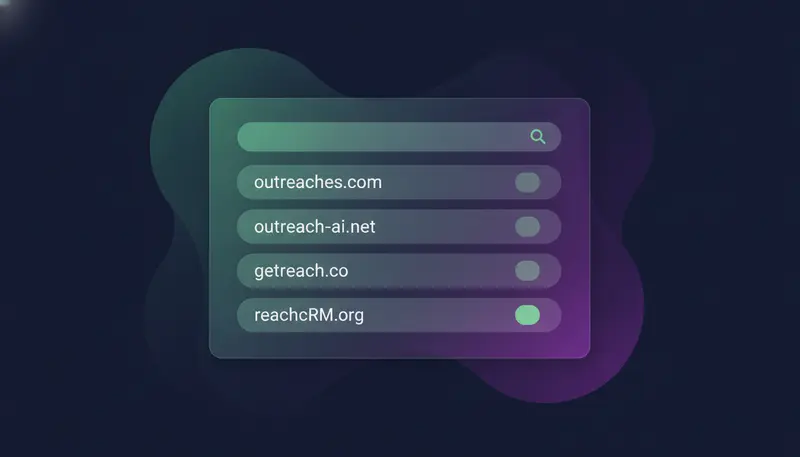
Choose a name close to your brand that a person still recognises. If your company is yourbrand.com, then getyourbrand.com or yourbrandhq.com are the kind of names to look for. Keep it short and easy to say aloud, and never copy another company's name.
Then redirect the domain to your main website, so a prospect who types it in lands somewhere real.
Which email provider to use
Use a normal mailbox provider such as Google Workspace or Microsoft 365. ZOROSDR connects Gmail, Outlook or any mailbox, and sends from your own connected accounts, not a shared server. Your outreach inherits your own domain authority. The longer argument is in why sending from your own mailbox beats shared servers.
Before you buy
- A name close to your brand and easy to spell aloud
- Registered in your company's name, with renewal set up
- A redirect from the new domain to your main website
- A mailbox provider chosen, with a plan for each inbox
- Access to edit the domain's DNS records
Step 2: Create 2-3 Inboxes per Domain
Add two or three inboxes to each domain. Every inbox sends under the same domain, so a crowded domain concentrates risk. When you need more volume, add another domain.
Name each inbox after a real person. Generic addresses like info@ read as mass mail, and people reply to people.
Mind the ceilings too. In ZOROSDR, a mailbox sends at most 100 emails a day and a LinkedIn account 50 actions a day, to keep accounts safe.
Treat these as ceilings, not targets. A new inbox should sit well below them.
Step 3: Configure SPF, DKIM and DMARC Records
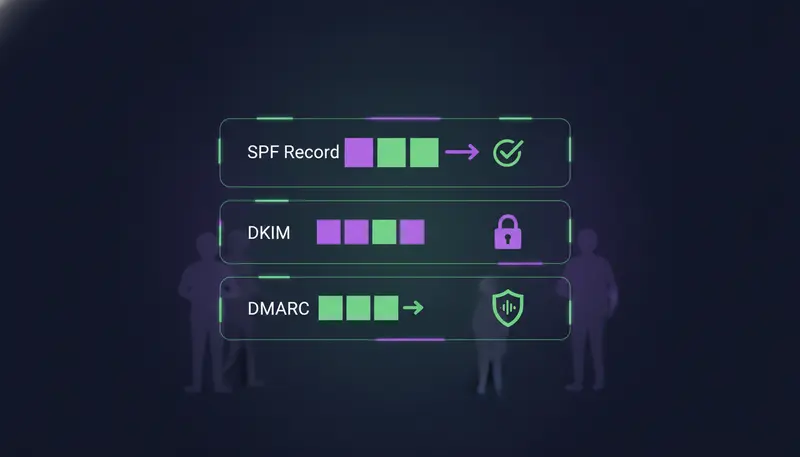
These three DNS records tell receiving servers that you may send from your domain and that nobody tampered with the message. Missing or broken records are a common reason cold email lands in spam. The next step is where most teams slip: they add the records once and never check them.
SPF: who may send
SPF is a TXT record listing the services allowed to send for the domain. Keep one SPF record per domain, because a second one can make receivers ignore both. Merge new services into the existing record.
DKIM: a signature on every message
Your provider generates a key, you publish it in DNS, then you switch signing on in the provider's admin panel. Publishing the key without enabling signing is a common slip.
DMARC: what happens when checks fail
DMARC is a TXT record at _dmarc. It tells receivers how to treat mail that fails SPF or DKIM. Start in monitoring mode, then tighten the policy once everything passes.
- 1Add SPFpublish one TXT record from your mailbox provider, merged with any existing SPF record.
- 2Turn on DKIMpublish the key your provider gives you, then enable signing.
- 3Publish DMARCadd the TXT record at
_dmarc, starting in monitoring mode. - 4Run the Sending domain checkin ZOROSDR, open Settings, then channels. It checks SPF, DKIM and DMARC and says how to fix each part.
- 5Check again laterDNS changes can take time to spread, so run the check once more after a while.
For a plainer walk-through of each record, see SPF, DKIM and DMARC explained in plain English.
Step 4: Set a Custom Tracking Domain
Tools that track opens or clicks rewrite links or add a tiny image. These usually point at the tool's own domain, which many other senders share, and that shared address can drag down your reputation.
A custom tracking domain is a subdomain of your own, pointed at the tracking service with a DNS record. Links then carry your name, not a stranger's. The simpler option is plain text with no tracking in your first emails.
How tracking applies to your own ZOROSDR setup is something the team will confirm on the contact page.
Step 5: Warm Up for 14 to 21 Days
A new inbox with no history that suddenly sends a lot looks like a spammer. Warm-up starts small and rises gradually. Plan for 14 to 21 days before full volume.
In ZOROSDR, the Warm up gradually setting ramps new email and LinkedIn accounts over 3 weeks. Leave it on. Every new workspace also starts with 100 AI-written messages, 25 prospect-finding credits and 10 WhatsApp messages, so you can test lead quality meanwhile.
Watch the Health label on each account. It reads Healthy, Worth watching or At risk, based on failed sends, LinkedIn invite acceptance and limits.
During warm-up
- Leave Warm up gradually switched on for every new account
- Send only to addresses you have checked
- Keep the first sequences short and personal
- Read the Health label every few days and press Check now if it changes
The mistake to avoid is setting the full daily limit on a brand-new inbox with warm-up off. New accounts that send a lot from day one get flagged. For a detailed schedule, read the 3-week warm-up plan.
How to Set Up Cold Email Infrastructure from Scratch: Connect, Limit and Launch
With domains, records and warm-up planned, connect each inbox and set its limits.
- 1Connect the accountadd each mailbox in Settings, channels.
- 2Set the Daily limitchoose a figure well below the 100-a-day ceiling while the inbox is new.
- 3Set sending hours and daysmatch the working hours and days of your leads.
- 4Add a signaturewrite one, or leave it empty to use the brand voice's signature.
- 5Save changespress Save changes, or nothing is stored.
Messages in ZOROSDR are sent in each lead's local working hours. In your sequence, leave at least 2 to 3 days between emails.
Nothing goes out without a person. Every first message lands as a draft in AI Admin, where you approve, edit or skip it. System rules also catch replies like stop or unsubscribe before the AI reads them.
Before launch, confirm the Sending domain check shows no open problems and every inbox reads Healthy. Then read your first drafts as a prospect would. When you are ready to build the sequence, the outreach sequence setup checklist covers the next stage.
Frequently asked questions
How many domains do I need for cold email?
It depends on how many people you want to contact each day. A ZOROSDR mailbox sends at most 100 emails a day, and that is a ceiling, not a target. Start with one or two domains with 2-3 inboxes each and add more as you grow.
How long should I warm up a new inbox?
Plan for 14 to 21 days. In ZOROSDR, the Warm up gradually setting ramps new email and LinkedIn accounts over 3 weeks.
Do I need DMARC for cold email?
Yes, publish it along with SPF and DKIM. Start in monitoring mode, then tighten the policy once all checks pass.
Does ZOROSDR send from shared servers?
No. Messages go out from your own connected accounts, such as Gmail or Outlook, so your outreach inherits your own domain authority.
Summary
Use secondary lookalike domains, keep to 2-3 inboxes per domain, publish SPF, DKIM and DMARC, sort out tracking, and warm up for 14 to 21 days. Then connect the inboxes and set sensible limits.
The quickest way to see it working is to start the 14-day free trial and run the Sending domain check on your first inbox. Prefer to talk it through? Book a demo.